Building UDFs for Agents
Fused gives you a uniquely fast path from data to agent tool. Write a Python function that joins datasets from any source — FTP servers, one-time CSV downloads, internal APIs, legacy databases, files someone emailed you — do any processing you need, and click Share → Open API to instantly expose it as an MCP server. No infrastructure, no deployment, no waiting.
An agent calls a UDF the same way any HTTP client does:
GET https://udf.ai/fc_TOKEN/get_county_demographics.json?county_fips=06037
{"county": "Los Angeles", "population": 9829544, "median_income": 71358, "year": 2023}
The key to making this work well is keeping UDFs focused: return small, structured results rather than raw datasets. Agents work best when each tool call gives them a precise answer, not a table they have to reason over. UDFs also have a 120s execution limit — another reason to precompute and serve summaries rather than doing heavy work at call time. This guide covers how to design UDFs that agents can discover, call, and chain reliably.
Three patterns for agent UDFs
Pattern A: Data query
The most common pattern. The agent calls the UDF to answer a factual question and uses the response to reason further.
- Returns a small dict or DataFrame (< ~20 rows)
- Field names are self-explanatory
- Call via
.jsonendpoint
# get_county_demographics

@fused.udf
def udf(county_fips: str = "06037", year: int = 2023):
    """
    Returns population and median income for a specific US county.
    Use when the user asks about demographics for a named county.
    """
    ...
    return {"county": "Los Angeles", "population": 9829544, "median_income": 71358, "year": 2023}
Agent call: GET /fc_TOKEN/get_county_demographics.json?county_fips=06037
Pattern B: Action / trigger
The UDF kicks off a long-running job (ingestion, report generation, batch processing) and returns immediately with a job reference. The agent doesn't wait for completion.
# trigger_census_ingestion

@fused.udf
def udf(dataset: str = "census_2023", region: str = "CA"):
    """
    Triggers a batch ingestion job for the specified dataset and region.
    Returns immediately with a job ID. Use the job ID with the
    check_ingestion_status UDF to monitor progress.

    Do NOT use this to fetch data — use get_county_demographics instead.
    """
    import uuid
    job_id = str(uuid.uuid4())
    enqueue_batch_job(dataset=dataset, region=region, job_id=job_id)
    return {
        "job_id": job_id,
        "status": "queued",
        "message": f"Ingestion job started for {dataset} / {region}",
    }
A synchronous UDF that waits for a 5-minute job to complete burns compute and risks hitting the 120s timeout. Design action UDFs to fire-and-forget, then provide a separate status-check UDF if the agent needs to follow up.
For batch patterns, see Scaling out UDFs.
Pattern C: Unit processing
Some UDFs do fast, bounded work on a single input — convert a CSV to Parquet, clip a raster to a bounding box, enrich a single address. Each call completes well within the time limit, but an agent can fan out many calls in parallel to process an entire dataset.
# convert_to_parquet

@fused.udf
def udf(input_path: str, output_prefix: str, partition_by: str = "region"):
    """
    Converts a single CSV file to a partitioned Parquet dataset.
    Returns the output path and row count on success.

    input_path: S3 or GCS path to the source CSV
    output_prefix: S3 or GCS prefix where partitioned parquet will be written
    partition_by: column name to partition by (default: "region")
    """
    import pandas as pd
    df = pd.read_csv(input_path)
    out = f"{output_prefix}/{df[partition_by].iloc[0]}.parquet"
    df.to_parquet(out, index=False)
    return {"rows": len(df), "output_path": out}
The agent calls this once per file and collects the results. Because each call is independent and fast, many can run in parallel without hitting the 120s limit.
This is different from Pattern B: the agent gets a result it can act on immediately rather than waiting for a background job to complete. Keep each unit small — if a single file takes minutes to process, switch to Pattern B instead.
Name your UDFs explicitly
The function must always be called udf — Workbench requires it. Use a comment at the top of the file to give the UDF a descriptive name:
# get_county_population

@fused.udf
def udf(state_fips: str = "06"):
    ...
This matters because agents choose tools by name and description. get_county_population is immediately useful; leaving the comment blank or vague is not.
Keep execution fast
Agents call UDFs sequentially — each call blocks the reasoning loop. A UDF that takes 30s means the agent is idle for 30s, and that compounds across every step of a workflow.
Precompute and read from storage, don't recompute on each call:
# get_state_population_summary

@fused.udf
def udf(state_fips: str = "06"):
  """
  Returns pre-aggregated population statistics by county for a given state.
  Reads from pre-processed parquet, not live Census API.
  """
  import pandas as pd
  df = pd.read_parquet(f"s3://my-bucket/census/state={state_fips}/summary.parquet")
  return df
Cache expensive setup with @fused.cache — model loading, large file reads, and API auth are good candidates.
Keep the 120s limit in mind. If a task regularly approaches that ceiling, it's a sign the UDF is doing too much live work. Move computation upstream and have the UDF serve results from storage. For jobs that genuinely need more time, see Pattern B: Action / trigger above.
Keep I/O small
LLM context windows are narrow. A UDF returning 50,000 rows doesn't just fail to help — it actively degrades the agent by flooding its context.
Return aggregates and summaries, not raw data:
# get_census_data

@fused.udf
def udf(state: str = "CA"):
  import pandas as pd
  df = pd.read_parquet("s3://my-bucket/census/raw.parquet")
  return df[df["state"] == state]  # Could be millions of rows
# get_top_counties_by_population

@fused.udf
def udf(state: str = "CA", top_n: int = 10):
    """
    Returns the top N counties by population for a given state.
    Use top_n to control how many results are returned (default: 10).
    """
    import pandas as pd
    df = pd.read_parquet("s3://my-bucket/census/raw.parquet")
    return (
        df[df["state"] == state]
        .groupby("county")["population"]
        .sum()
        .nlargest(top_n)
        .reset_index()
    )
Add a limit or top_n parameter whenever the result size could vary. Agents can pass a smaller value when they only need a quick answer.
Pass file paths, not file contents. When an agent needs to send data to a UDF for processing, have it pass an S3 or GCS path — not inline data:
# enrich_address_file

@fused.udf
def udf(input_path: str, output_path: str = ""):
    """
    Runs demographic enrichment on a CSV of addresses stored at input_path.
    Writes results to output_path and returns a summary of the enrichment.

    input_path: S3 or GCS path to a CSV with an 'address' column
    output_path: S3 or GCS path where enriched parquet will be written
    """
    import pandas as pd
    df = pd.read_csv(input_path)
    # ... processing ...
    df.to_parquet(output_path)
    return {"rows_processed": len(df), "output_path": output_path}
The UDF does the heavy lifting internally. The agent only sees the summary. For reading and writing files from cloud storage, see the dedicated guide.
Design for the question, not the data
The LLM decides which UDF to call based on its docstring. A vague docstring leads to wrong calls; a good one leads to correct ones on the first try.
Write docstrings that answer: what does this UDF answer, and when should an agent use it?
# search_data

@fused.udf
def udf(q: str, yr: int = 2023, lim: int = 5):
  """
  Gets data.
  """
  ...
# search_census_demographics

@fused.udf
def udf(search_query: str, year: int = 2023, top_n: int = 5):
    """
    Searches census demographic data using a natural language query.
    Returns the top N matching counties with population and income data.

    Use this when the user asks about population, demographics, or income
    for a specific area or region.

    Args:
        search_query: Plain text search (e.g. "counties near Los Angeles")
        year: Census year to query (2020-2023)
        top_n: Number of results to return
    """
    ...
Use descriptive parameter names (region_fips, start_date, metric_name) — not abbreviations (r, d1, m).
Provide sensible defaults so agents can call the UDF without specifying every parameter. A UDF with no defaults forces the agent to guess.
Harden the surface area. Agents should only control what they genuinely need to vary. Everything else — table names, file paths, internal SQL structure — should be hardcoded. This prevents both misuse and prompt injection. See Write UDFs securely for full guidance.
Build for chaining
Agents rarely call a single UDF in isolation. They build pipelines — the output of one call becomes the input of the next. A few patterns make UDFs much easier to chain reliably.
Accept any readable format as input
If your UDF accepts a path parameter, don't hardcode pd.read_parquet(path). Agents may pass CSVs, GeoJSON files, or other formats depending on what a prior step produced. Detect the format and read accordingly:
# analyze_locations

@fused.udf
def udf(path: str, value_col: str = "score"):
    """
    Analyzes location data from the file at path.
    Accepts Parquet, CSV, or GeoJSON.
    """
    import geopandas as gpd
    import pandas as pd

    if path.endswith(".parquet"):
        df = gpd.read_parquet(path)
    elif path.endswith((".json", ".geojson")):
        df = gpd.read_file(path)
    elif path.endswith(".csv"):
        df = pd.read_csv(path)
    else:
        try:
            df = gpd.read_parquet(path)
        except Exception:
            df = gpd.read_file(path)
    ...
A UDF that crashes on CSV input when the agent passes one breaks the whole pipeline. Accept what the agent might reasonably give you.
Add output_path and save_to_file parameters
Agents chain UDFs by passing the output of one as the input to another. The cleanest way to do this is via a stable S3 path — not by passing a live UDF URL as input to the next call (which causes the receiver to fetch HTML or GeoJSON and try to parse it as Parquet).
Give every analysis or transformation UDF an output_path and save_to_file parameter:
# transform_data

@fused.udf
def udf(
    path: str,
    # ... task-specific params ...
    output_path: str = "",
    save_to_file: bool = False,
    overwrite: bool = False,
):
    """
    Transforms the dataset at path.
    If save_to_file=true, writes the result to output_path on S3
    and returns a status object with the output_path — suitable for chaining.
    Otherwise returns the result directly.
    """
    import geopandas as gpd

    gdf = process(path)

    if save_to_file and output_path:
        if not overwrite and file_exists(output_path):
            return [{"status": "skipped", "output_path": output_path, "reason": "already exists"}]
        gdf.to_parquet(output_path)
        return [{"status": "success", "output_path": output_path, "rows": len(gdf)}]

    return gdf
When called with save_to_file=true, the agent reads the output_path from the response and passes it to the next UDF. When called without it, the agent gets the data directly. Both modes work with the same UDF.
Name output columns explicitly — don't inherit from input
If your UDF aggregates or transforms a column, name the output column after what it represents, not where it came from. An aggregated count stored in a column called latitude (because that was the value_col parameter) will confuse both agents and humans downstream.
# doctest: skip
# ❌ Output column inherits the input column name — "latitude" actually means "count"
gdf = aggregate(df, value_col="latitude", agg="count")
# → columns: ["hex", "latitude", "geometry"]

# ✅ Rename to reflect what the column actually contains
gdf = aggregate(df, value_col="latitude", agg="count")
gdf = gdf.rename(columns={"latitude": "count"})
# → columns: ["hex", "count", "geometry"]
If you want to let callers name the output column, add an output_col parameter with a sensible default:
# aggregate_by_hex

@fused.udf
def udf(path: str, value_col: str, agg: str = "count", output_col: str = ""):
    result_col = output_col or agg
    gdf = ...  # aggregate
    gdf = gdf.rename(columns={value_col: result_col})
    return gdf
Expose your canvas to agents
Share via MCP
Click Share → Copy MCP in Workbench to get a ready-to-run claude mcp add command for your canvas. AI tools (Claude, Cursor, VS Code with MCP extensions) can connect to this endpoint directly and discover your UDFs as callable tools. For a step-by-step walkthrough, see Connecting AI to Data.
Only visible UDFs are included. UDFs that are hidden in Workbench are excluded from the MCP endpoint. Use this to keep helper UDFs, internal utilities, or anything you don't want agents to call directly out of the tool list — they'll still run when called by other UDFs, they just won't be surfaced.
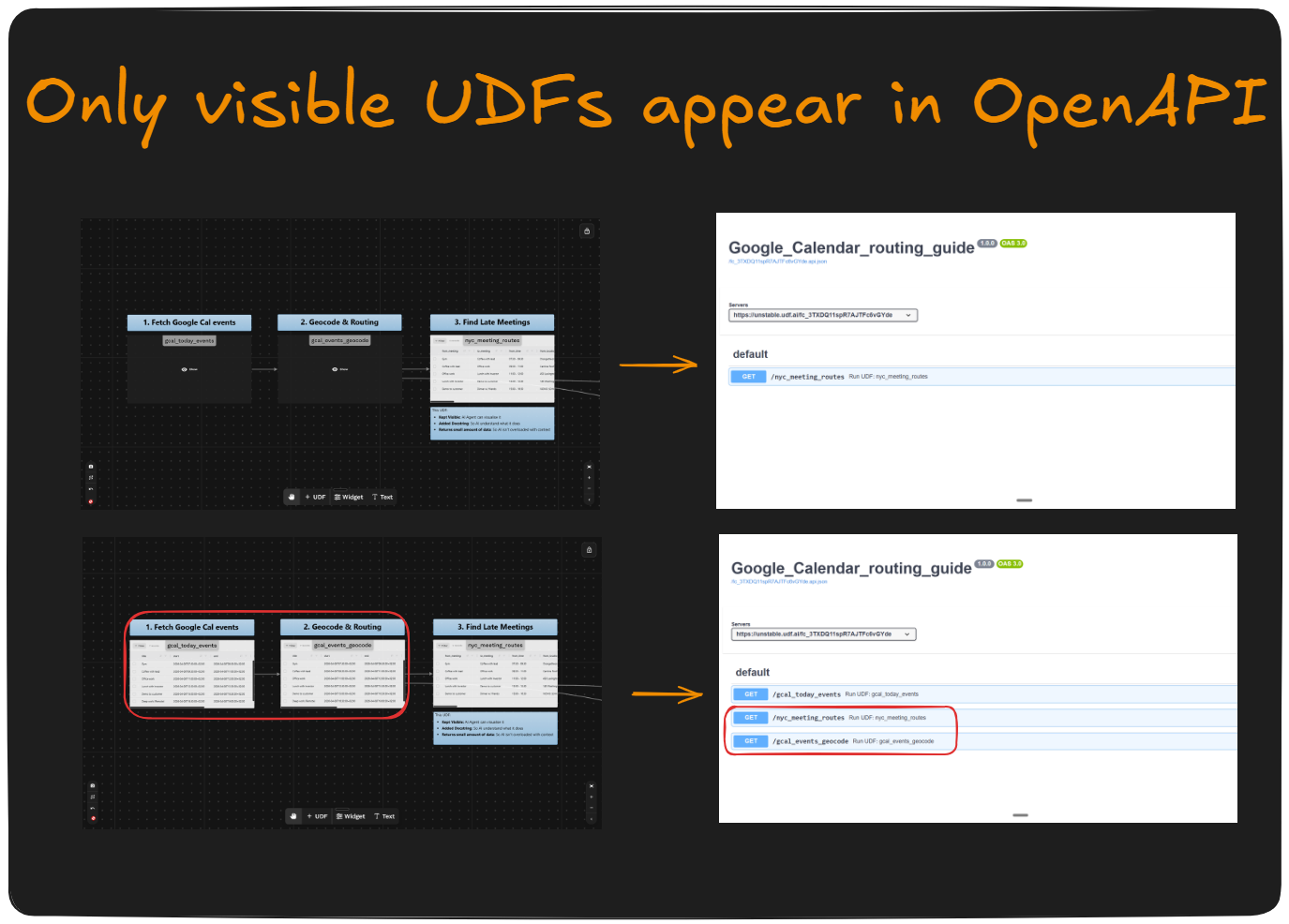
In the example above, the top canvas exposes all three UDFs to the agent, while the bottom canvas hides the two upstream UDFs and surfaces only the final analysis tool. Hiding intermediate steps keeps the agent's tool list focused on the UDFs that answer questions directly.
Organize your canvas
All UDFs on a canvas are exposed together through a single canvas token (fc_XXX). Group agent-facing UDFs on a dedicated canvas and move large batch jobs or internal utilities to a separate one:
Canvas A (agent-facing)         Canvas B (internal)
─────────────────────────────   ──────────────────────────────
get_county_demographics         run_full_etl_pipeline
convert_to_parquet              rebuild_vector_index
check_ingestion_status          reprocess_historical_data
This lets you share the Canvas A token freely — in MCP configs, in documentation, with external agents — without worrying about exposing heavy or destructive operations. See Tokens & endpoints for how to manage canvas access.
Build visualizations with Widgets
UDFs return data — they're not the right place for charts or maps. For visualizations, use Widgets: JSON UI components that run SQL over UDF output and render as bar charts, line charts, maps, and more. An agent can construct a Widget URL from any UDF on the canvas without modifying the UDF itself.
Security
Agents execute with the parameters they're given. Treat every agent-supplied parameter as untrusted input:
- Never accept free-form SQL, table names, or file paths as agent-controlled parameters
- Hardcode sensitive connection details — never expose them as params
- Validate and constrain inputs (e.g. an allowlist of valid
metricvalues)
See Write UDFs securely for full guidance.
See also
- Connecting AI to Data — how to connect your canvas to Claude Code via MCP and add an AI chat widget
- Widgets — build charts and maps from UDF output
- Write UDFs securely
- Run UDFs efficiently
- Efficient caching
- Scaling out UDFs
- Cloud storage
- Tokens & endpoints