Widgets
Widgets are interactive, declarative UI nodes you can drop onto the Fused canvas. Unlike UDFs that run Python, widgets are defined in JSON — no code required. They can be inputs (sliders, dropdowns, text inputs) that drive parameters across the canvas, or outputs (charts, maps, tables, big numbers) that display live data from any UDF. Every widget is shareable as a standalone URL, embeddable anywhere, and fully accessible to AI for generation and editing.
For per-component prop reference generated from JSON Schema, see the Widget API.
With Widgets, you can:
- Drive UDFs with inputs — Sliders, dropdowns, and text inputs broadcast values to every UDF on the canvas.
- Visualize UDF output — Output widgets render charts, tables, maps, and KPIs from any UDF.
- Query with SQL — Widgets run SQL over UDF results in-browser via DuckDB WASM.
- Dynamically generate interactive UI — Pass valid widget JSON via a URL parameter to update the UI on the fly (see Anatomy of a Widget URL).
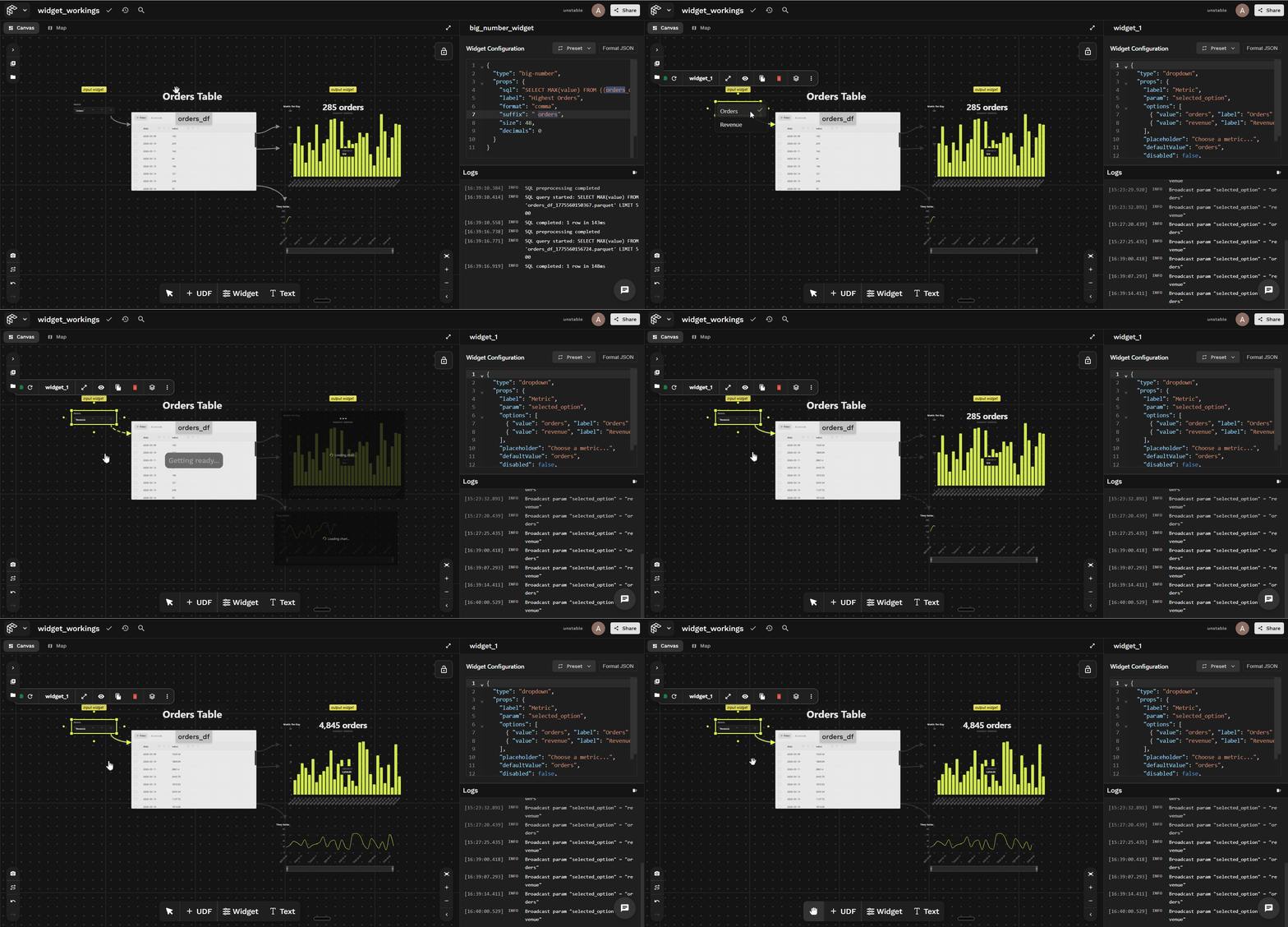
Changes in the input widget make all the downstream UDFs and output widgets re-run.
Structure of a Widget
Every widget is a small JSON object with two required keys: type and props.
{
  "type": "<widget-type>",
  "props": {
    "sql": "SELECT ... FROM {{my_udf}} WHERE value > $my_param",
    "title": "My Chart",
    "param": "my_param"
  }
}
Browse the full Widget API reference for every widget type and its props.
How to create and use a Widget
Step 1: Drop a Widget Node
In the Fused Workbench canvas, click the Widget icon in the toolbar to add one, then click it to open the JSON editor in the right panel.
{
  "type": "<widget-type>",
  "props": { ... }
}
Step 2: Connect it to a UDF
Show the orders_df UDF code
@fused.udf
def udf(selected_option: str = "orders"):
    import pandas as pd
    import numpy as np
    from datetime import datetime, timedelta

    np.random.seed(42)
    end_date = datetime.now()
    dates = [end_date - timedelta(days=i) for i in range(29, -1, -1)]

    df = pd.DataFrame({
        "date": [d.strftime("%Y-%m-%d") for d in dates],
        "orders": np.random.randint(50, 300, size=30),
        "revenue": np.round(np.random.uniform(500, 5000, size=30), 2)
    })

    col = selected_option if selected_option in ("orders", "revenue") else "orders"
    return df[["date", col]].rename(columns={col: "value"})
Two things to do:
- Write the widget SQL to query the UDF output table (here
orders_df). - Connect the
orders_dfUDF node to the widget node with an edge.
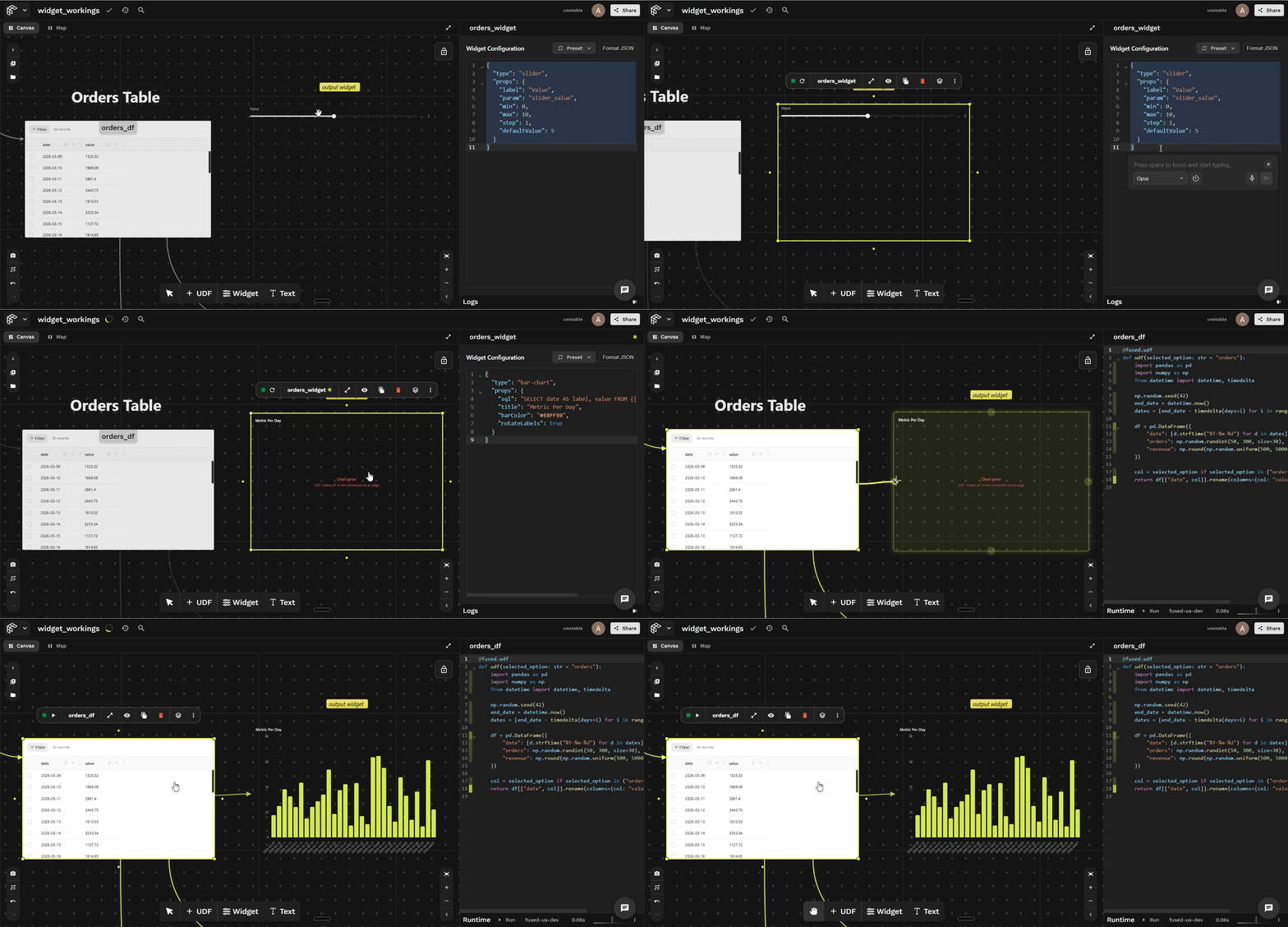
Example (bar chart) — Try it out:
{
  "type": "bar-chart",
  "props": {
    "sql": "SELECT date AS label, value FROM {{orders_df}} ORDER BY label",
    "title": "Metric Per Day",
    "barColor": "#E8FF59",
    "rotateLabels": true
  }
}
The UDF must be on the same canvas. The name inside {{ }} must match a UDF name present in the canvas exactly (case-sensitive).
Anatomy of a Widget URL
Every widget URL follows a predictable structure that makes it easy to share, embed, and programmatically manipulate:
URL structure breakdown:
- Fused domain:
www.fused.io. share_token: The canvas token (fc_...). It scopes access to your canvas and its UDFs.?widget={JSON}: An optional query parameter that overrides the entire widget definition — pass any valid widget JSON to render a different visualization, query, or layout on the same underlying data without touching the canvas. AI agents can use this to generate new widgets and return modified URLs instantly.
The base share URL (https://www.fused.io/share/<share_token>) can access all UDFs in the shared canvas.
Example: Line Chart
The ?widget= param makes the URL a lightweight experiment surface for both humans and AI. You can tweak the SQL in the URL, reload, and see the result instantly.
https://www.fused.io/share/fc_fused%2FOrders_Widget_Example?widget={
  "type": "line-chart",
  "props": {
    "sql": "SELECT date AS label, value FROM {{orders_df}} ORDER BY label",
    "title": "Time Series",
    "showArea": true,
    "curveType": "smooth"
  }
}
The {{orders_df}} reference still resolves to the UDF on your canvas — the share token carries the canvas context. Only the widget rendering config changes.
Open this in a browser to get a live, interactive widget — the chart renders data from your Fused UDF. Try it out →
Passing parameters to a UDF in SQL
You can pass parameters directly into a UDF reference using ?param=value — this calls the UDF with that value, rather than filtering its output in SQL.
The upstream UDF must explicitly accept the parameter as a Python function argument for this to work.
Given a UDF that accepts a product argument:
@fused.udf
def udf(product: str = ""):
    import pandas as pd
    import random

    random.seed(42)
    products = ["Widget A", "Widget B", "Gadget X"]
    rows = [{"product": random.choice(products), "revenue": round(random.uniform(100, 5000), 2)} for _ in range(50)]
    df = pd.DataFrame(rows)
    if product:
        return df[df["product"] == product]
    return df
You can pass a value directly in the SQL reference — for example, to always query for Widget A:
SELECT product AS label, revenue AS value FROM {{udf_1?product=Widget A}}
Or pass a dynamic value from an input widget using $param, so the chart re-runs as the user types:
SELECT product AS label, revenue AS value FROM {{udf_1?product=$name}}
Show full widget JSON
{
  "type": "div",
  "props": { "style": "display:flex;flex-direction:column;gap:12px;padding:12px" },
  "children": [
    {
      "type": "text-input",
      "props": {
        "label": "Filter category",
        "placeholder": "e.g. Widget A",
        "param": "name",
        "defaultValue": ""
      }
    },
    {
      "type": "bar-chart",
      "props": {
        "title": "Category Values",
        "sql": "SELECT product AS label, revenue AS value FROM {{udf_1?product=$name}}",
        "barColor": "#E8FF59",
        "showGrid": true,
        "showValues": true,
        "beginAtZero": true
      }
    }
  ]
}
The text-input widget publishes its value under param: "name". The bar chart reads it as $name and passes it to udf_1 on every keystroke.
You can also reference a UDF's output inline — outside SQL, for example in a text widget's value. Use {{ udf_name.column_name }} to pull any column from the UDF's output, and add [row] to select a specific element by its row index (any row, not just the first). Append ?param=value to run the UDF with that parameter before reading from it. For example, {{ udf_1.col_name[0]?param=100 }} runs udf_1 with param=100, then resolves to the first value of its col_name column.
AI driven Widget
This section uses the widget-builder widget type — a wrapper widget that takes any other widget definition as input and displays it on the canvas. Because it wraps other widgets, it can layer on an AI panel and a live JSON editor, letting you iterate on the inner widget without leaving the canvas.
With the widget-builder widget, you can:
- Wrap any widget — pass an inner
{ type, props }definition and render it at runtime. - Edit live with AI — prompt the built-in AI panel to rewrite the inner definition in place.
- Tweak JSON inline — open the optional JSON editor to change SQL, chart type, or styling without leaving the canvas.
Editing with AI
With aiBuilderMode: true, you can describe what you want in plain English (for example, "switch this to a line chart" or "add a filter for price > 100"), and the AI rewrites the inner { type, props } definition for you. Use aiPanel to place the panel ("right", "left", "top", or "bottom").
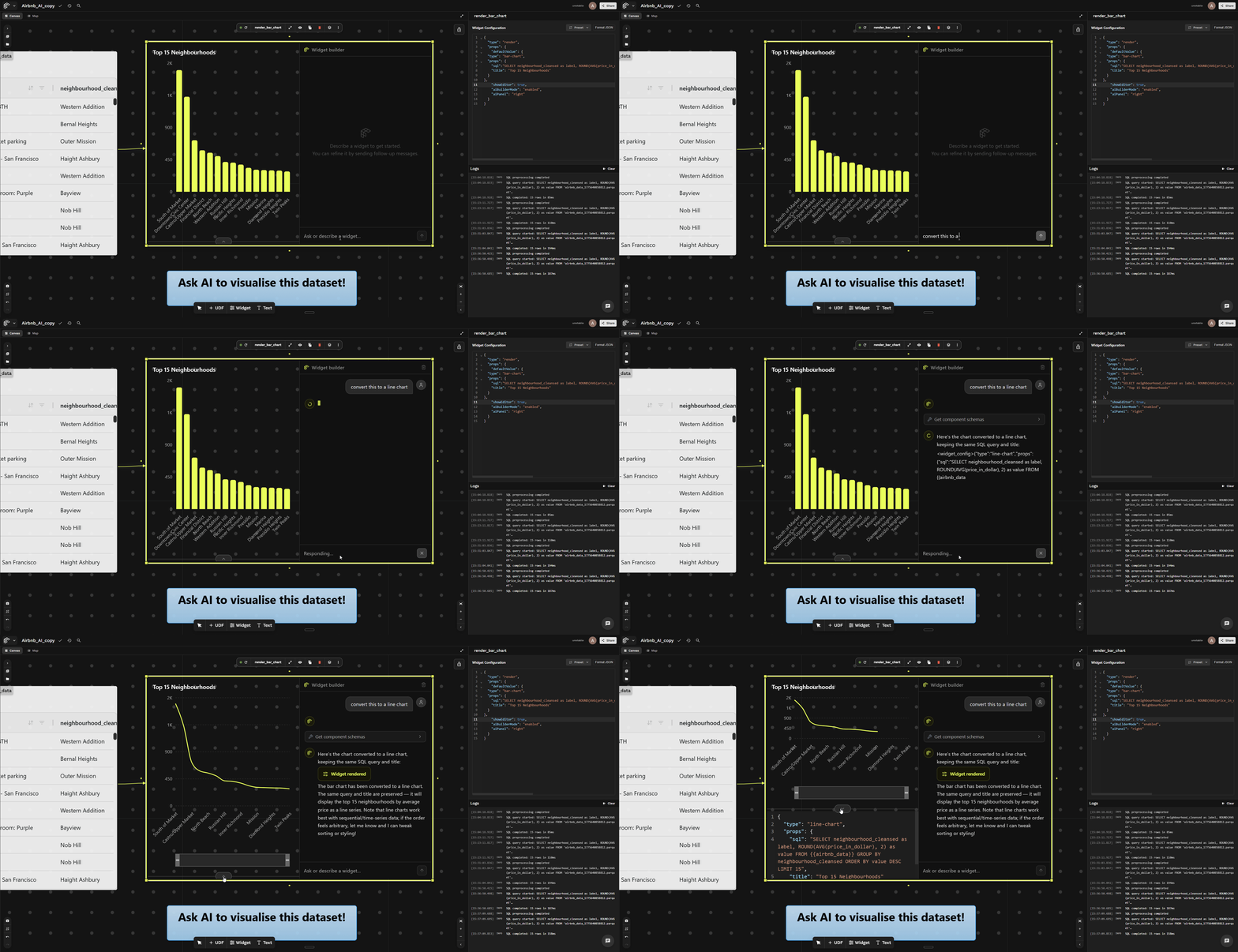
Prompting the AI panel to change the chart type to a line chart — the widget updates in real time. Try it out →
The AI edits the inner defaultValue definition only — the outer widget-builder shell stays the same. This means you can iterate on chart type, SQL, or styling without touching the widget container itself.
Structure of a widget-builder
A widget-builder is always a two-layer schema:
- The outer shell is
{ "type": "widget-builder", "props": { ... } }. - The inner definition is the widget you want to display, stored under
props.defaultValueas{ "type": "…", "props": { … } }.
{
  "type": "widget-builder",
  "props": {
    "defaultValue": {
      "type": "<inner-widget-type>",
      "props": { }
    },
    "showEditor": true,
    "aiBuilderMode": true,
    "aiPanel": "right"
  }
}
How to create and use a widget-builder
Click the widget icon to create a new widget node, then paste in the JSON below. Once you connect the widget to the my_udf UDF, the widget-builder will display a bar chart with an AI panel and code editor.
Show the my_udf UDF code
@fused.udf
def udf():
    import pandas as pd

    path = "s3://fused-sample/demo_data/airbnb_listings_sf.parquet"

    @fused.cache
    def load_data(file_path):
        return pd.read_parquet(file_path)

    df = load_data(path)
    return df
Show the widget-builder JSON
{
  "type": "widget-builder",
  "props": {
    "defaultValue": {
      "type": "bar-chart",
      "props": {
        "sql": "SELECT neighbourhood_cleansed as label, ROUND(AVG(price_in_dollar), 2) as value FROM {{my_udf}} GROUP BY neighbourhood_cleansed ORDER BY value DESC LIMIT 10",
        "title": "Top 10 Most Expensive Neighbourhoods"
      }
    },
    "showEditor": true,
    "editorCollapsed": false,
    "aiBuilderMode": true,
    "aiPanel": "right"
  }
}
For the full props reference, see the Widget Builder API docs.
Sharing a Widget from Canvas
When you share a specific widget from a canvas, you will get a URL like:
https://www.fused.io/share/<share_token>/<widget_name>?...
You can still override the widget by appending a widget query parameter and passing widget JSON.
When the base URL includes a specific widget path (for example, /orders_widget), the ?widget= override is scoped. It can only query UDFs that are connected to that widget node in the canvas. It does not have access to every UDF in the shared canvas.
When you share a widget URL, Fused automatically appends all canvas parameters as query parameters so the shared view can be reproduced exactly. Try it out →
Maps
To show geospatial data, use the map widget, Fused Map (fused-map). It draws points, polygons, H3 hexagons, and raster tiles from your UDFs.
Available Widgets
For the full list of widget types and their props, see the Widget API reference. To explore every widget live, open the Widget Showcase canvas →
Multi-Component Widgets
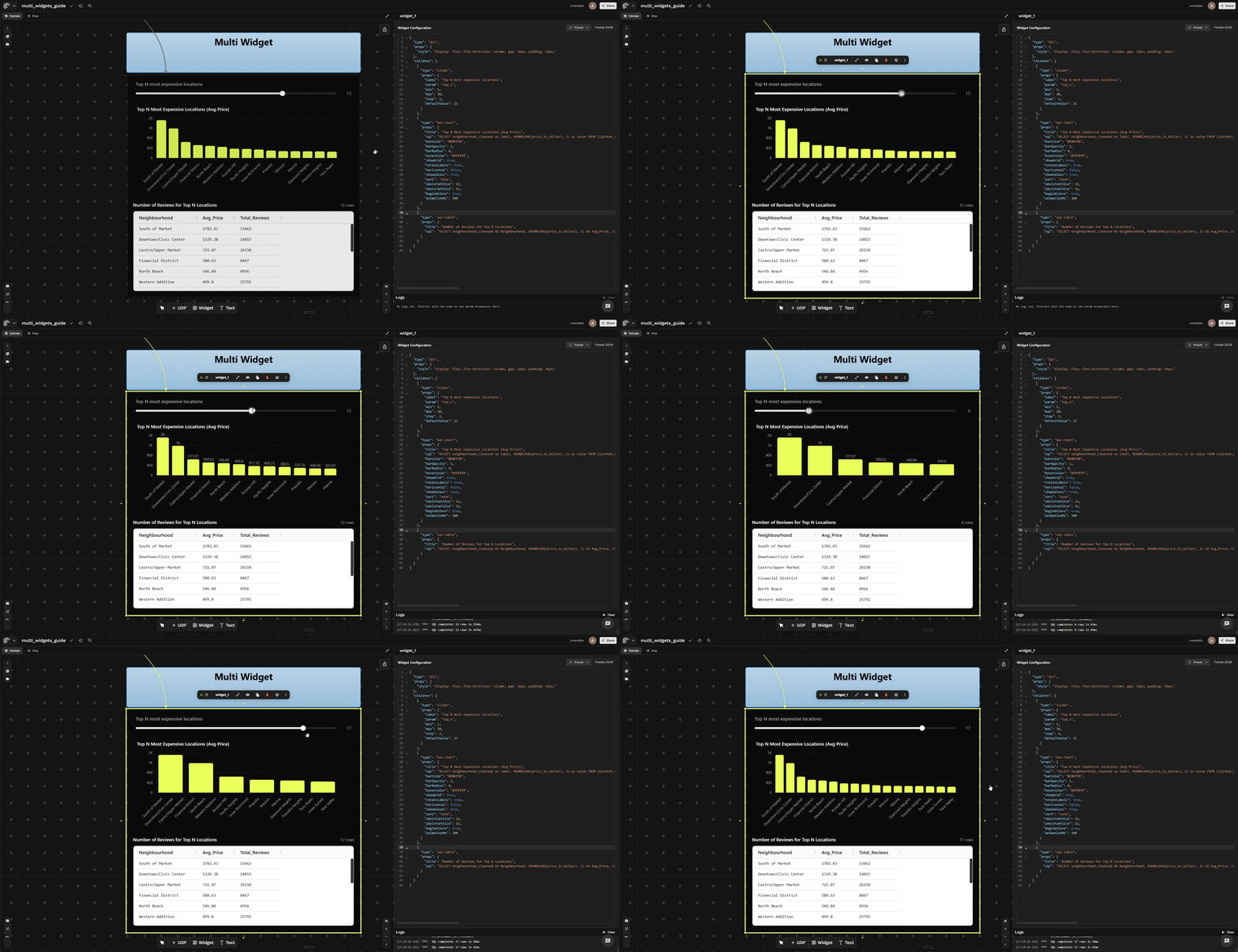
A single widget node can hold multiple widgets — sliders, charts, tables, text, maps — stacked or laid out together. You wrap them in a div with children.
Use a div as the root container type and list each widget inside its children array — the structure is just a wrapper with standard CSS for layout.
{
  "type": "div",
  "props": {
    "style": "display: flex; flex-direction: column; gap: 16px; padding: 16px;"
  },
  "children": [
    { "type": "slider",    "props": { ... } },
    { "type": "bar-chart", "props": { ... } },
    { "type": "sql-table", "props": { ... } }
  ]
}
type: "div"— a container, not a visual widget. It just groups children.props.style— standard CSS. Useflex-direction: columnfor a vertical stack,rowfor side-by-side.children— an ordered array of widget definitions{ type, props }. Each child is a full widget. For the full list of supported widgets, see the Widget API reference.
You can nest a div inside another div for more complex layouts.
Combining input & output components
Multiple components can also work together inside a single widget:
- An input component (like a slider) publishes a value through
param - An output component (like a chart) can read that value with
$param
This lets you build interactive widgets with both inputs and outputs in a single widget.
Example
When the slider changes, every widget using $param (here $top_n) updates instantly — the bar chart and SQL table re-render in sync with the slider value. Try it out →
Show the my_udf UDF code
@fused.udf
def udf():
    import pandas as pd

    path = "s3://fused-sample/demo_data/airbnb_listings_sf.parquet"

    @fused.cache
    def load_data(file_path):
        return pd.read_parquet(file_path)

    df = load_data(path)
    return df
Show the multi-widget JSON
{
  "type": "div",
  "props": {
    "style": "display: flex; flex-direction: column; gap: 16px; padding: 16px;"
  },
  "children": [
    {
      "type": "slider",
      "props": {
        "label": "Top N most expensive locations",
        "param": "top_n",
        "min": 1,
        "max": 20,
        "step": 1,
        "defaultValue": 15
      }
    },
    {
      "type": "bar-chart",
      "props": {
        "title": "Top N Most Expensive Locations (Avg Price)",
        "sql": "SELECT neighbourhood_cleansed as label, ROUND(AVG(price_in_dollar), 2) as value FROM {{my_udf}} GROUP BY neighbourhood_cleansed ORDER BY value DESC LIMIT $top_n",
        "barColor": "#E8FF59",
        "barOpacity": 1,
        "barRadius": 4,
        "hoverColor": "#ffffff",
        "showGrid": true,
        "rotateLabels": true,
        "horizontal": false,
        "showValues": true,
        "xAxisFontSize": 11,
        "yAxisFontSize": 11,
        "beginAtZero": true,
        "animationMs": 300
      }
    },
    {
      "type": "sql-table",
      "props": {
        "title": "Number of Reviews for Top N Locations",
        "sql": "SELECT neighbourhood_cleansed AS Neighbourhood, ROUND(AVG(price_in_dollar), 2) AS Avg_Price, CAST(SUM(number_of_reviews) AS INTEGER) AS Total_Reviews FROM {{my_udf}} WHERE neighbourhood_cleansed IN (SELECT neighbourhood_cleansed FROM {{my_udf}} GROUP BY neighbourhood_cleansed ORDER BY AVG(price_in_dollar) DESC LIMIT $top_n) GROUP BY neighbourhood_cleansed ORDER BY Avg_Price DESC"
      }
    }
  ]
}