Writing UDFs
Follow these steps to write a User Defined Function (UDF).
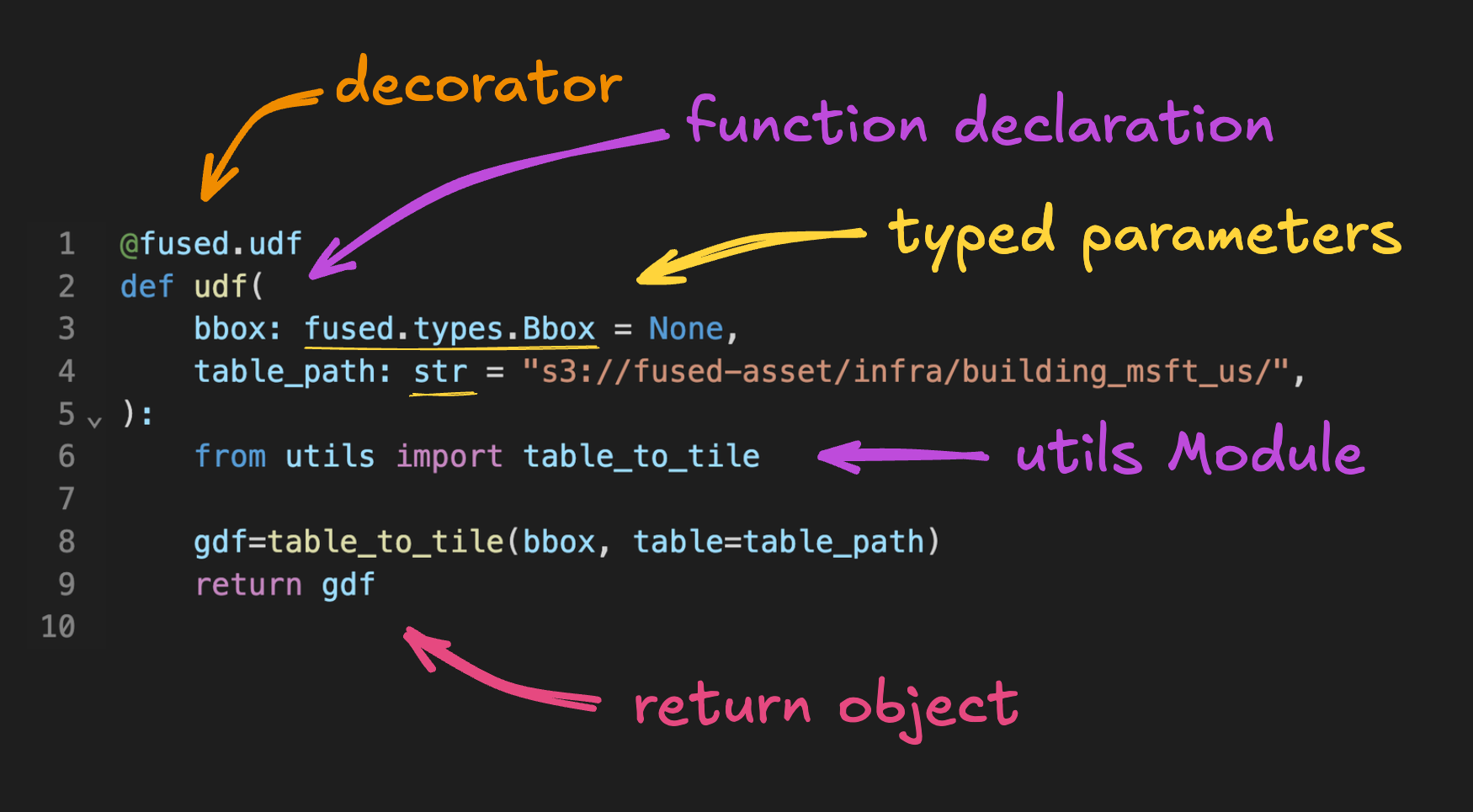
- Decorate a function with
@fused.udf - Declare the function logic
- Optionally cache parts of the function
- Set typed parameters to dynamically run based on inputs
- Return a vector table or raster
- Save the UDF
@fused.udf decorator
First decorate a Python function with @fused.udf to tell Fused to treat it as a UDF.
Function declaration
Next, structure the UDF's code. Declare import statements within the function body, express operations to load and transform data, and define a return statement. This UDF is called udf and returns a pd.DataFrame object.
@fused.udf # <- Fused decorator
def udf(name: str = "Fused"): # <- Function declaration
    import pandas as pd
    return pd.DataFrame({'message': [f'Hello {name}!']})
The UDF Builder in Workbench imports the fused module automatically. To write UDFs outside of Workbench, install the Fused Python SDK with pip install fused and import it with import fused.
Placing import statements within a UDF function body (known as "local imports") is not a common Python practice, but there are specific reasons to do this when constructing UDFs. UDFs are distributed to servers as a self-contained units, and each unit needs to import all modules it needs for its execution. UDFs may be executed across many servers (10s, 100s, 1000s), and any time lost to importing unused modules will be multiplied.
An exception to this convention is for modules used for function annotation, which need to be imported outside of the function being annotated.
@fused.cache decorator
Use the @fused.cache decorator to persist a function's output across runs so UDFs run faster.
@fused.udf # <- Fused decorator
def udf(bounds: fused.types.Bounds = None, name: str = "Fused"):
    import pandas as pd

    @fused.cache # <- Cache decorator
    def structure_output(name):
        return pd.DataFrame({'message': [f'Hello {name}!']})

    df = structure_output(name)
    return df
Typed parameters
UDFs resolve input parameters to the types specified in their function annotations.
This example shows the bounds parameter typed as fused.types.Bounds
and name as a string.
# doctest: skip
@fused.udf
def udf(
    bounds: fused.types.Bounds = None, # <- Typed parameters
    name: str = "Fused"
):
To write UDFs that run successfully as both File and Tile, set bounds as the first parameter, with None as its default value. This enables the UDF to be invoked successfully both as File (when bounds isn't passed) and as Tile. For example:
@fused.udf
def udf(bounds: fused.types.Bounds = None):
    ...
    return ...
Supported types
Fused supports a wide range of parameter types for UDFs. Parameters without a specified type are handled as strings by default.
| Type | Description | Serialization Format |
|---|---|---|
str | String values | Any string value |
int | Integer values | Numeric strings or integers |
float | Floating point values | Numeric strings or floats |
bool | Boolean values | Strings "true"/"false" (case-insensitive) |
list | List of values | JSON-serialized list |
dict | Dictionary of key-value pairs | JSON-serialized dict strings |
tuple | Tuple of values | JSON-serialized list |
uuid.UUID | UUID values | UUID strings |
pd.DataFrame | Pandas DataFrame | JSON-serialized table strings |
gpd.GeoDataFrame | GeoPandas GeoDataFrame | GeoJSON strings or bbox arrays |
shapely.Geometry | Shapely geometry objects | WKT strings |
fused.types.Bounds | Bounding box as [minx, miny, maxx, maxy] | Bbox array or GeoJSON |
fused.types.Bbox | Bounding box as Shapely geometry | Bbox array or GeoJSON |
fused.types.TileXYZ (Legacy) | Mercantile tile coordinates | Bbox array or GeoJSON |
fused.types.TileGDF (Legacy) | GeoDataFrame with x/y/z tile columns | Bbox array or GeoJSON |
fused.types.ViewportGDF (Legacy) | GeoDataFrame for viewport (no x/y/z) | Bbox array or GeoJSON |
The Map Builder runs the UDF as a Map Tile if the first parameter is typed as fused.types.Bounds.
pd.DataFrame as JSON
Pass tables and geometries as serialized UDF parameters in HTTPS calls. Serialized JSON and GeoJSON parameters can be casted as a pd.DataFrame or gpd.GeoDataFrame. Note that while Fused requires import statements to be declared within the UDF signature, libraries used for typing must be imported at the top of the file.
# doctest: skip
import geopandas as gpd
import pandas as pd

@fused.udf
def udf(
    gdf: gpd.GeoDataFrame = None,
    df: pd.DataFrame = None
):
Reserved parameters
When running a UDF with fused.run, it's possible to specify the map tile Fused will use to structure the bounds object by using the following reserved parameters.
With x, y, z parameters
overture_udf = fused.load("UDF_Overture_Maps_Example")
overture_udf(x=5241, y=12662, z=15)
Passing a GeoDataFrame
# doctest: skip
import geopandas as gpd
bounds = gpd.GeoDataFrame.from_features({"type":"FeatureCollection","features":[{"type":"Feature","properties":{},"geometry":{"coordinates":[[[-122.41152460661726,37.80695951427788],[-122.41152460661726,37.80386837460925],[-122.40744576928229,37.80386837460925],[-122.40744576928229,37.80695951427788],[-122.41152460661726,37.80695951427788]]],"type":"Polygon"},"id":1}]})
overture_udf(bounds=bounds)
Passing a bounding box list
You can also pass a list of 4 points representing [min_x, min_y, max_x, max_y]
# doctest: skip
overture_udf(bounds=[-122.349, 37.781, -122.341, 37.818])
Import functions from other UDFs
UDFs can import functions from other UDFs with fused.load in the UDFs GitHub repo or private GitHub repos. Here the commit SHA 05ba2ab pins the UDF to specific commit for version control (see pinning to commit hash).
common = fused.load("https://github.com/fusedio/udfs/tree/b672adc/public/common/")
Return values
UDFs can return the following types of objects. Fused will try to convert the returned object to the requested file format.
Tables
pd.DataFrame,pd.Series,gpd.GeoDataFrame,gpd.GeoSeries,shapely.Geometry- Arrow-compatible objects (e.g., from DuckDB)
Arrays
numpy.ndarray,xarray.Dataset,xarray.DataArraybytesorio.BytesIOare treated as raster images and returned as-is with the raster MIME type.
For the default png format (when rendered in workbench), there are some additional limitations:
- Arrays must be 2D or higher, 1D arrays are not supported (prefer returning lists for 1D array instead).
- Rasters without spatial metadata should indicate their tile bounds
When calling the UDF directly (or using the npy format), those restrictions
do not apply to numpy.ndarray, and numpy arrays as return value are supported in general.
Simple Python objects
int,float,str,list,tuple,set,np.integer,np.floating,NoneType
str is handled as HTML by default. Other types are encoded as JSON.
Dictionaries
dict objects are useful for returning multiple values, e.g., dictionaries of raster numpy arrays. Dictionary values can be any of the types above, while keys must be strings.
Save UDFs
UDFs exported from the Map Builder or saved locally are formatted as a .zip file containing associated files with the UDFs code, utils Module, metadata, and README.md.
└── Sample_UDF
    ├── README.MD       # Description and metadata
    ├── Sample_UDF.py   # UDF code
    └── meta.json       # Fused metadata
In Python: .to_fused()
When outside of Workbench, save UDF to your local filesystem with my_udf.to_directory('Sample_UDF') and to the Fused cloud with my_udf.to_fused().
This will allow you to access your UDF using a token, from a GitHub commit, or directly import it in Workbench from a GitHub URL. See the Udf.to_fused() API reference for the full signature and parameters.
In Workbench: Saving through Github
You can also save your UDFs directly through GitHub as personal, team or community UDF. Check out the Contribute to Fused to see more.
Update tags and metadata
Modify the UDF's metadata to manage custom tags that persist across the local filesystem, the Fused Cloud, and your team's GitHub repo.
# Assumging my_udf was loaded or created above
my_udf.metadata['my_company:tags']=['tag_1', 'tag_2']

# Push to Fused
my_udf.to_fused()

# You can reload your UDF and see the updated metadata
fused.load('my_udf').metadata
Security
URL and tool inputs should be treated as untrusted: narrow parameters, validate identifiers, and bind query values. See Security best practices for UDFs.
Debug UDFs
UDF Builder
A common approach to debug UDFs is to show intermediate results in the UDF Builder runtime panel with print statements.
HTTPS requests
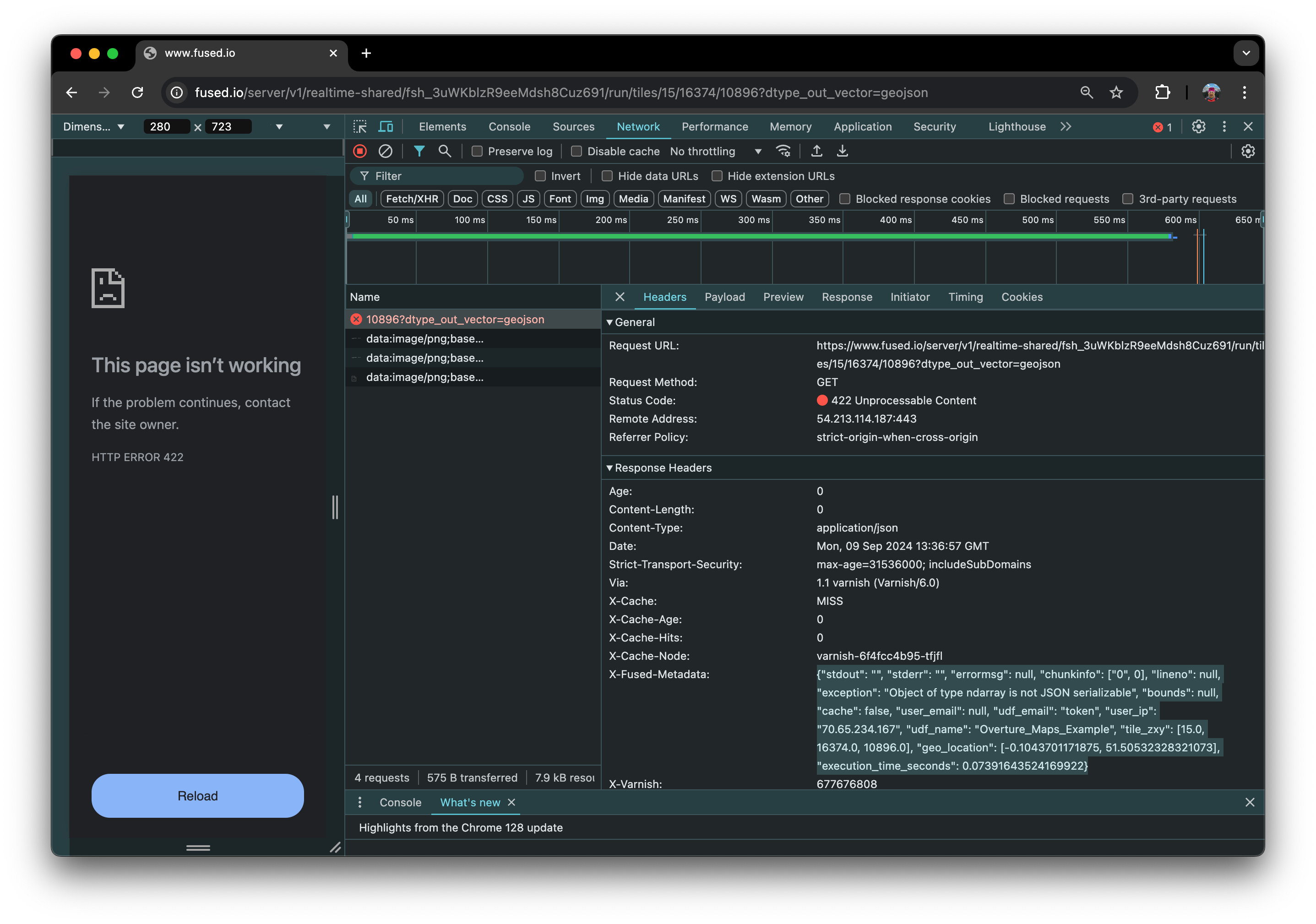
When using HTTPS requests, any error messages are included in the X-Fused-Metadata response header. These messages can be used to debug. To inspect the header on a browser, open the Developer Tools network tab.