Securing Shared Tokens
Fused shared tokens can be set to either public or team-only access. You should set the token access depending on your use case, and the sensitivity of the data you are sharing.
Shared tokens are set on the canvas level. Every UDF on the canvas will inherit the access level of the canvas.
Scoping access with canvases
Access is managed per canvas (team vs public and share links). Canvas passcode is an extra gate that exists only for publicly shared canvases. Everyone who can open a canvas sees the same UDFs on it and the same rules for calling them over HTTPS.
If you only want to expose some UDFs—or a different audience—use a separate canvas: keep public or broadly shared work on one canvas, and move UDFs that need tighter access to another canvas with team-only sharing.
Public Access
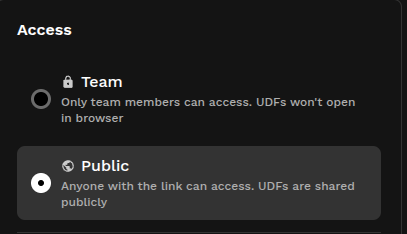
Public access means that the token is accessible by anyone. This is useful if you want to share your data publicly without requiring authentication.
If you set the token to public access, anyone can access the token and use it to call the UDFs on the canvas, so you should only set a token to public access if you are sharing non-sensitive data.
Team Access
Team access means the canvas and its UDF endpoints are available only to members of your team (unless you add a separate, time-limited session token for a specific use case). Use this when the data should not be callable by anonymous HTTPS clients using the canvas token alone.
For team-only canvases, you can generate a session token when you need a time-limited credential — for example to embed a UDF URL in an external page or application.
Session tokens are short-lived tokens that need to be explicitly generated. By default, a shared token that is set to team access will not have a session token. In this case, the shared token will be available to team members only.
Add the session token as a fused_session_token query parameter on the UDF HTTPS URL (same host and path as a normal canvas call, for example https://udf.ai/fc_<CANVAS_TOKEN>/<udf_name>.json). Because session tokens are short-lived, they are safe to use in embedded links.
Setting the Access Level
To set the access level of a shared token, click the Share button in the top right corner of the canvas.
Then, select the access level you want to set for the token.
Session Tokens
This diagram shows the authentication flow for a team-only shared token with a session token, embedded in an external application.
- An authenticated user requests a page from an external application that embeds a team-only shared token.
- The external application’s backend calls the Fused API to mint a session token, authenticated with a Fused Service Account.
- Fused verifies the service account and returns a temporary session token.
- External application generates the embedded UDF URL with the session token and passes it to the user's browser.
- User's browser requests the UDF shared token link with the session token.
Creating a Fused Service Account
A Fused Service Account can be used to generate a session token. You can create one from the Integrations & Secrets page in the Fused Workbench.
- Open Integrations & Secrets from the Workbench sidebar. If you're already inside a canvas, use Quick Actions (
Ctrl+K) and search for "Integrations & secrets". - Under Service accounts, click + Create service account.
- Give the service account a name and click Create.
Your service account token will be shown only once, so make sure to copy it to a secure location. Never share your service account token publicly or commit it to version control.
Generating a Session Token
From Workbench
Team-scoped canvases require a session token for external access. When you click the Share button, Workbench automatically generates a session token for each UDF you want to share — just choose an expiration duration. You can generate multiple session tokens with different expiration times, and each token will expire independently.
Session tokens are created for the whole canvas. Any session token created can be used to access any other UDF & Widget in the same canvas.
The generated URL will look like:
https://www.fused.io/share/<canvas_token>/<udf_name>?fused_session_token=<session_token>

From your backend (service account)
To mint session tokens programmatically from your own backend (for example for embeds in a product), use a Fused Service Account and the HTTP API below.
import requests
import os

# Your canvas token
canvas_token = "fc_abcdef1234567890"

# Get the service account token from the environment variable or other secure source
fused_service_account_token = os.getenv("FUSED_SERVICE_ACCOUNT_TOKEN")

# Pass the service account token to the Fused server in the Authorization header
headers = {
    "Authorization": f"fused-service-token {fused_service_account_token}",
    "Content-Type": "application/json",
}

# Set the TTL for the session token
payload = {
    "ttl": 60 * 60 # 1 hour
}

# Make the request to the Fused server
req = requests.post(f"https://www.fused.io/server/v1/session-token/by-access-token/{canvas_token}", headers=headers, json=payload)

# Extract the session token from the response
session_token = req.json()["session_token"]
The session token will be valid for the duration of the TTL you set.
Using a Session Token
Once you have a session token, append fused_session_token to the UDF URL like any other query parameter. The path must still include the canvas token and UDF name (see Tokens & endpoints).
# Canvas token, UDF name, and session token (from the minting step above)
canvas_token = "fc_abcdef1234567890"
udf_name = "my_udf"
session_token = "835b249b-d3ac-4a2d-8f7c-43d0805464c9:1744065600:abcdefghijklmnopqrstuvwxyz1234567890"

# Example: JSON output — add other params with &
udf_url = f"https://udf.ai/{canvas_token}/{udf_name}.json?fused_session_token={session_token}"
Use that URL in iframes, map tile layers, or fetch from the browser.
Token lifecycle
A canvas token (fc_…) is created the first time you share a canvas, and stays the same for the life of that canvas unless you explicitly rotate it (see below). The token can appear in two forms — a random fc_… string, or a name-based fc_<team>/<canvas-name> reference — depending on how the canvas was first shared. Both behave identically; treat the token as an opaque string and don't parse or construct it.
Knowing which actions keep a token valid versus issue a new one matters when you distribute a token (an embed, a backend integration, an MCP endpoint) and update the canvas over time.
These keep the same token — already-distributed links keep working:
- Re-sharing a canvas (
fused canvas share, or sharing again from the Workbench Share modal) — the existing token is reused. - Updating canvas content — pushing new UDFs (
fused canvas push) or editing in Workbench.
These issue a new token — the previous one stops working:
- Rotating the token (
fused canvas share --new-token, or Generate new token in the Share modal). The old token is invalidated immediately. - Deleting and recreating a canvas — even under the same name, a recreated canvas is a new canvas with no token until you share it again, and it receives a different token.
When a token has been rotated or its canvas was recreated, calls using the old token fail: minting a session token returns a 404 from POST https://www.fused.io/server/v1/session-token/by-access-token/<canvas_token>, and calls to the UDF HTTPS endpoints (e.g. https://udf.ai/<canvas_token>/<udf_name>.json) start failing as well.
If you hit this, fetch the canvas's current token — re-run fused canvas share, which prints it, or copy it from the Workbench Share modal — and update your consumers with the new value.
If a release pipeline copies one canvas to another (for example dev → prod), update the destination canvas in place — push to the existing canvas rather than deleting and recreating it, and don't run share --new-token as part of the release. That keeps the distributed token stable. A canvas token cannot be recovered once invalidated, so if you do recreate a canvas you must re-share it and distribute the new token to every consumer.
See also
- Write UDFs securely — SQL, parameters, secrets, and experimental canvas passcodes (publicly shared canvases only)
- Tokens & endpoints
- Canvas — Share modal