Create a branded text to image pipeline
Define your brand's visual style once and share it with your whole team — anyone can generate on-brand images from a text prompt without a design tool or local setup. The Canvas can be scoped to your organization, so external users can't access it, the style library version-controls through GitHub, and API keys never leave the platform.
Turn a text description into a brand-consistent image in one click — or feed an existing sketch through the same style system to get a polished, on-brand version. Define your visual style once; everyone on the team uses the same guidelines automatically.
The pipeline was built on Fused Workbench and uses widgets to display generated images inline. The image on the Widgets docs page is an example of an image made using this exact technique.
How the pipeline works
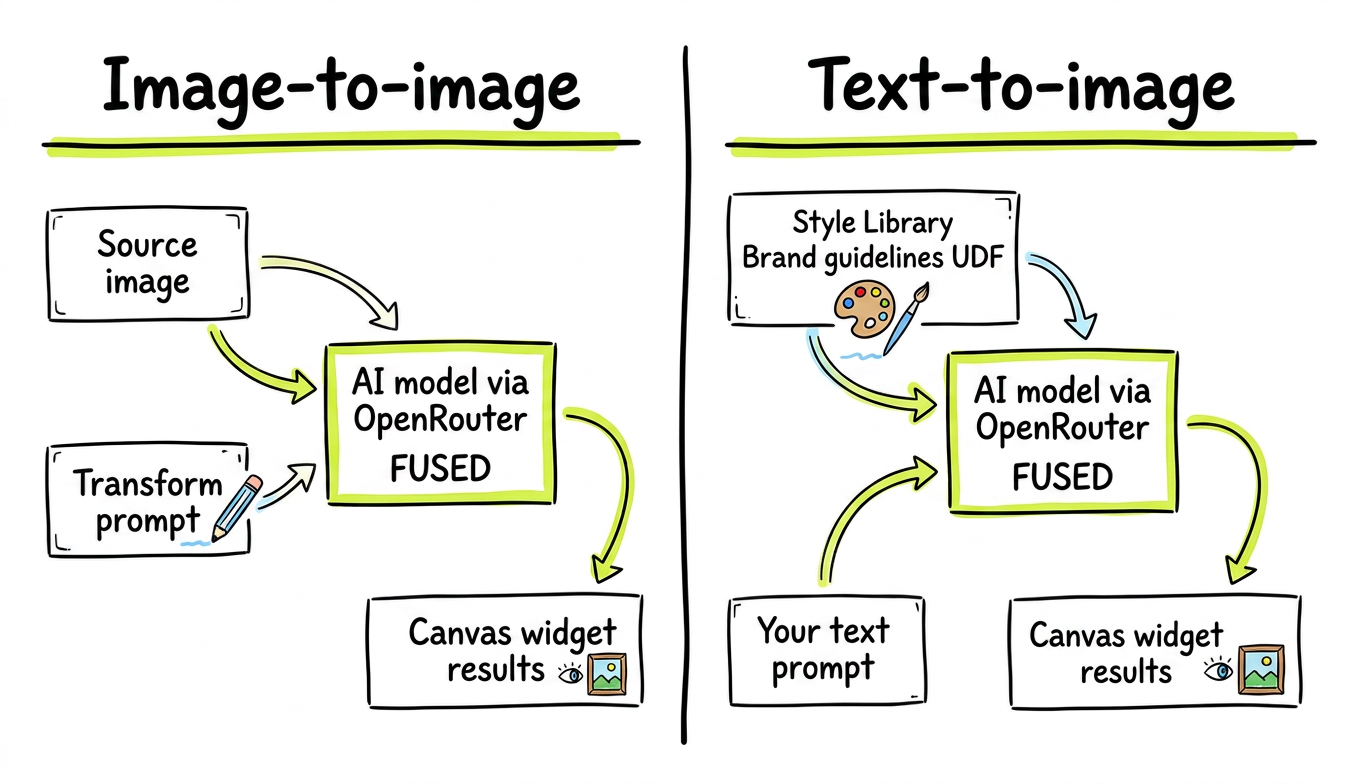
This diagram was itself generated using the pipeline — prompt: "Cartoon version of how the pipeline works for image to image pipeline", style: technical_blogpost.
View the style prompt used to generate this diagram
A clean hand-drawn technical diagram illustration, white background, black ink only.
Style: marker-drawn boxes and arrows, slightly rough edges, imperfect lines — like a
whiteboard diagram drawn by a skilled designer. NOT isometric, NOT 3D, NOT photorealistic.

Typography: bold hand-lettered titles in a casual but clean marker style.
Labels inside boxes use a clean sans-serif or handwritten font, medium weight.
Fused brand accent: use #E5FF44 (bright yellow-green) ONLY for:
- The "FUSED" box or any box representing Fused itself
- Underlines on main section titles
- Key arrow highlights
Other colors could be used but should only be supplementary and used sparingly.

Layout rules:
- Clear left-to-right or top-to-bottom flow
- Boxes have thin rounded borders, consistent sizing
- Arrows are clean, single-headed, slightly curved
- Labels are short: 1-3 words max per item
- Generous whitespace between elements
- If two panels, divide with a single vertical black line

Do NOT add: drop shadows, gradients, textures, background colors, decorative elements.
The diagram should look like it could be recreated on a whiteboard in 10 minutes.
A central style library UDF holds your brand guidelines as named style prompts. Both the text-to-image and image-to-image generators pull from it at runtime, so every image — regardless of who generated it or what prompt they wrote — automatically follows the same visual rules.
Text-to-image
Type a description of what you want to create and submit. The AI model receives your prompt wrapped in the style guidelines and returns a brand-consistent image displayed directly in a Canvas widget.
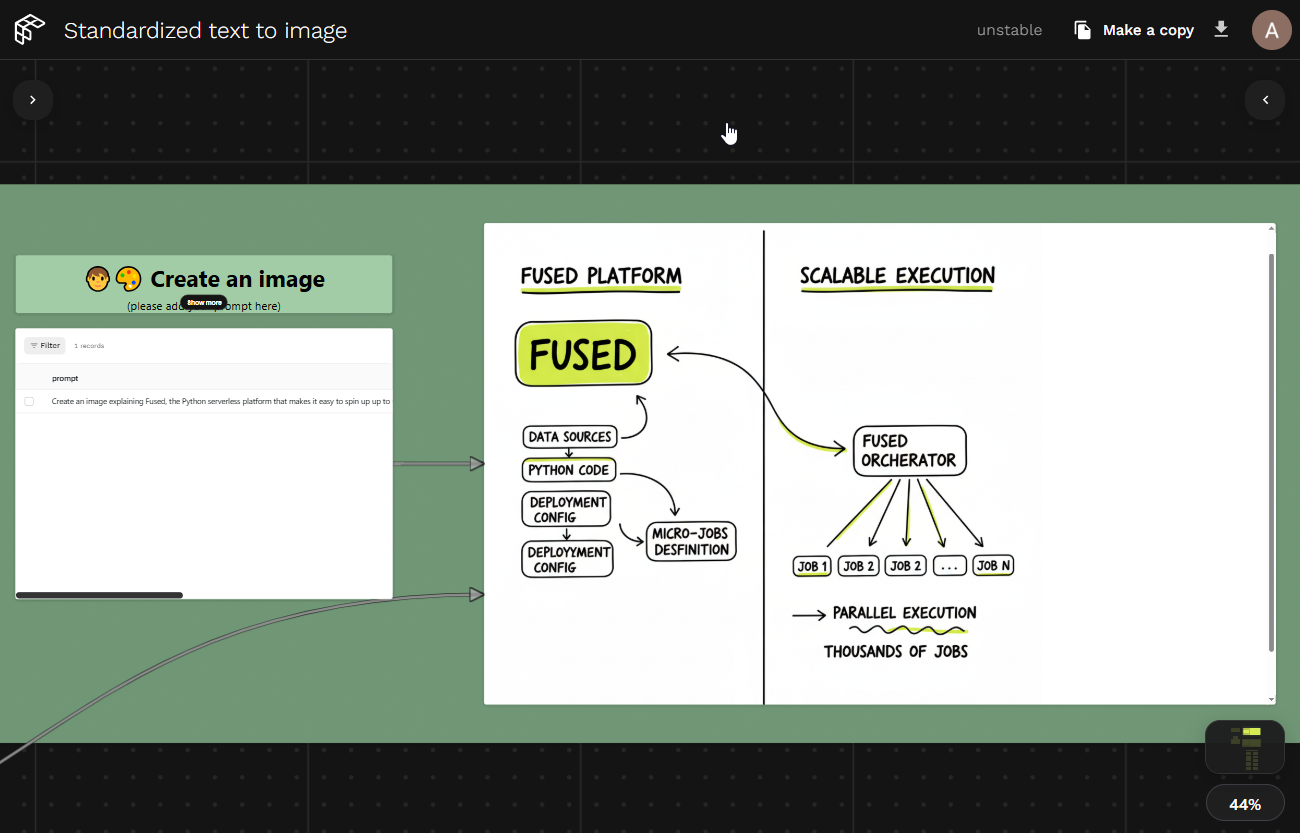
Image-to-image
Provide an existing image — a hand-drawn sketch, a rough diagram, a photo — and a short prompt describing the transformation. The model applies your brand style while preserving the structure and composition of the source.
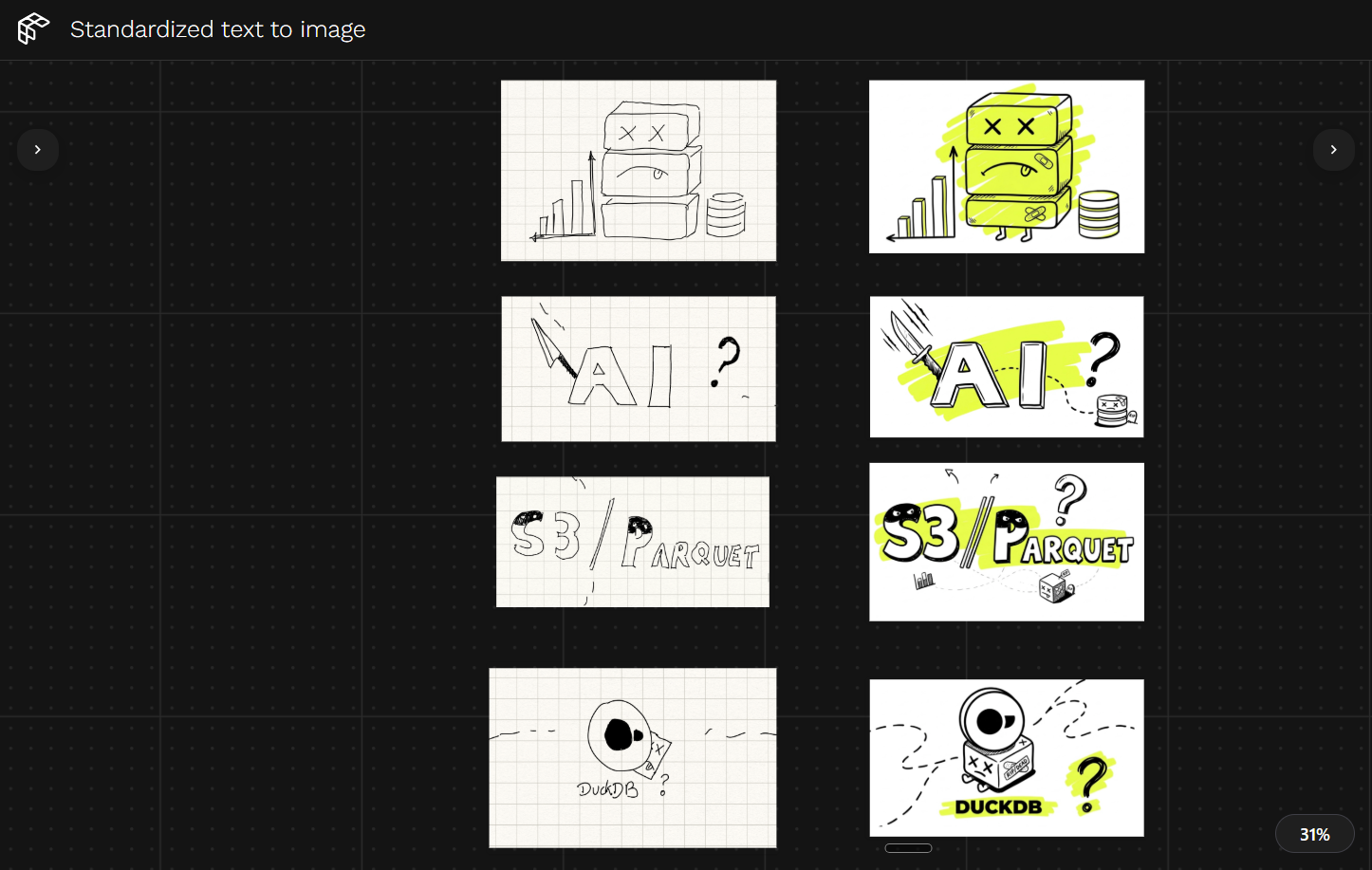
Left: raw sketches. Right: the same content transformed into a consistent branded illustration style — no manual design work.
Why run this on Fused?
You could wire up OpenRouter locally in a script, but running it on Fused gives you:
- Secure secrets management — API keys are stored as Fused secrets, never in code or environment variables. The key never touches team members' machines.
- Team sharing — share the Canvas URL with anyone in your org. They open a browser, type a prompt, and get an on-brand image — no Python environment, no local setup, no credential sharing. Access stays within your organization.
- Response caching — identical prompt + style combinations return instantly without re-calling the API. Running the same prompt twice costs nothing extra.
- One style update, everywhere — edit the style library once and every future generation picks up the change automatically.
- Fast iteration — tweak prompts, switch styles, and compare outputs in the browser in seconds.
Add your key once as a Fused secret named openrouter_api_key:
- Go to Workbench → Preferences → Secrets
- Click Add secret, name it
openrouter_api_key, paste your key - The pipeline reads it automatically — no code changes needed
Team members with Canvas access can generate images without ever seeing or handling the key.
Customize your brand style
The style library UDF returns a DataFrame where each column is a named style. Each value is a detailed visual prompt the AI model uses alongside whatever the user types. Adding a new style is just adding a new column:
@fused.udf
def udf(color: str = "#E5FF44"):
    import pandas as pd

    return pd.DataFrame({
        "technical_blogpost": [f"""
A clean hand-drawn technical diagram, white background, black ink only.
Marker-drawn boxes and arrows, slightly rough edges — like a whiteboard sketch.
Fused brand accent: use {color} only for key highlights and the focal element.
Clear left-to-right flow, generous whitespace, 1-3 word labels per box.
"""],
        "youtube_thumbnail": ["""
YouTube thumbnail, 16:9. Pure black background. Ultra-bold condensed all-caps
sans-serif headline. First lines in white, last line in bright lime green (#E5FF44).
No people, no logos, no gradients — type fills the frame edge to edge.
"""],
        "crime_blogpost": [f"""
Hand-drawn sketch inked into a polished brand illustration. White background,
black ink line art, ONE accent color: {color} as wide highlighter swipes.
Crime scene diagram aesthetic. Bold all-caps labels, chunky arrows.
"""],
        # Add your own style here
        "my_brand": [f"""
Describe your brand visual style here. Include: color palette (use {color} for
accents), typography style, layout rules, illustration technique, and tone.
Be specific — the more precise the style prompt, the more consistent the output.
"""],
    })
The color parameter propagates your brand accent across all styles at once — change #E5FF44 to your primary color and every style updates in one place.
See also
- Widgets — how image output widgets work on the Canvas
- Secrets management — storing API keys securely
@fused.cache— avoid duplicate API charges- Working as a team
- Using AI inside a UDF