Amazon S3 Integration
Connect an S3 bucket to Fused to browse files in the File Explorer and access them from UDFs.
Professional and Enterprise Connecting private buckets requires a Fused Professional or Enterprise subscription.
Connect a bucket
Set the policy below on your bucket, replacing YOUR_BUCKET_NAME with its name. Fused will provide YOUR_ENV_NAME.
Details
{
    "Version": "2012-10-17",
    "Statement": [
        {
            "Sid": "Allow object access by Fused fused account",
            "Effect": "Allow",
            "Principal": {
                "AWS": [
                    "arn:aws:iam::926411091187:role/rt-production-YOUR_ENV_NAME",
                    "arn:aws:iam::926411091187:role/ec2_job_task_role-v2-production-YOUR_ENV_NAME"
                ]
            },
            "Action": [
                "s3:ListBucket",
                "s3:GetObjectAttributes",
                "s3:GetObject",
                "s3:PutObject",
                "s3:DeleteObject"
            ],
            "Resource": [
                "arn:aws:s3:::YOUR_BUCKET_NAME/*",
                "arn:aws:s3:::YOUR_BUCKET_NAME"
            ]
        }
    ]
}
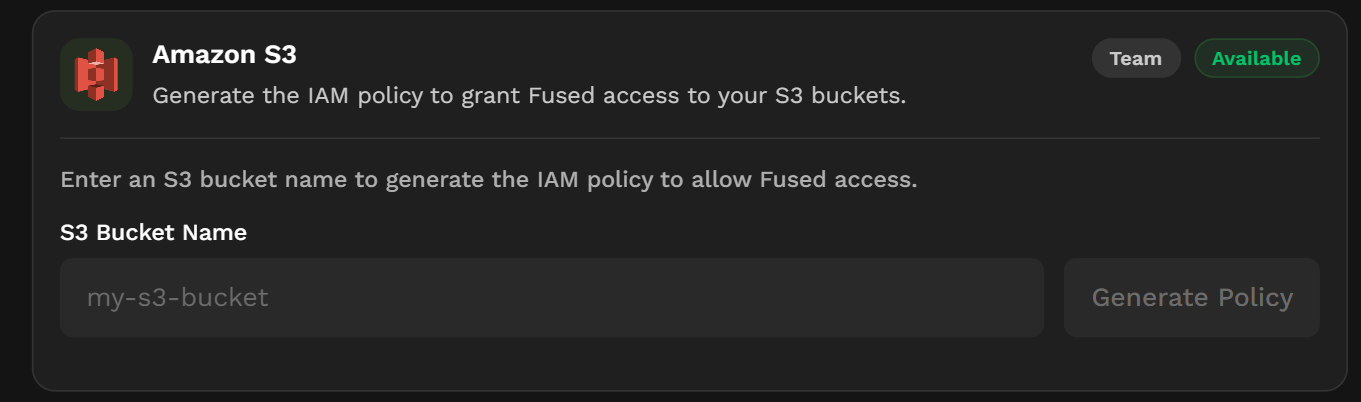
Alternatively, navigate to the Integrations page and enter your bucket name to automatically generate the IAM policy.
The bucket must also enable the following CORS settings to allow uploading files from Fused.
Details
[
    {
        "AllowedHeaders": [
            "range",
            "content-type",
            "content-length"
        ],
        "AllowedMethods": [
            "GET",
            "HEAD",
            "PUT",
            "POST"
        ],
        "AllowedOrigins": [
            "*"
        ],
        "ExposeHeaders": [
            "content-range"
        ],
        "MaxAgeSeconds": 0
    }
]
Connect an SSE-KMS encrypted bucket
If your S3 bucket uses server-side encryption with AWS KMS (SSE-KMS), the Fused role needs access to both the bucket and the KMS key. The KMS key must reside in the same region as the bucket.
1. Add a KMS key policy statement
In the AWS KMS console, add the following statement to the key policy of the KMS key used by the bucket. Replace <FUSED_ACCOUNT> and <FUSED_ROLE_NAME> with the values provided by your Fused solutions engineer.
{
  "Sid": "AllowCrossAccountUseOfKMS",
  "Effect": "Allow",
  "Principal": {
    "AWS": "arn:aws:iam::<FUSED_ACCOUNT>:role/<FUSED_ROLE_NAME>"
  },
  "Action": [
    "kms:Decrypt",
    "kms:Encrypt",
    "kms:GenerateDataKey*",
    "kms:DescribeKey"
  ],
  "Resource": "*"
}
2. Add an S3 bucket policy statement
In the S3 console, add the following statement to the bucket policy. Replace <FUSED_ACCOUNT>, <FUSED_ROLE_NAME>, and <BUCKET_NAME> with your values.
{
  "Version": "2012-10-17",
  "Statement": [
    {
      "Effect": "Allow",
      "Principal": {
        "AWS": "arn:aws:iam::<FUSED_ACCOUNT>:role/<FUSED_ROLE_NAME>"
      },
      "Action": "s3:*",
      "Resource": [
        "arn:aws:s3:::<BUCKET_NAME>",
        "arn:aws:s3:::<BUCKET_NAME>/*"
      ]
    }
  ]
}
If you only need Fused to read from the bucket (not write), scope Action down to ["s3:GetObject", "s3:ListBucket"] instead of s3:*.
3. Verify access
Once both policies are saved, your Fused solutions engineer can confirm connectivity. You can also verify from a UDF:
@fused.udf
def udf():
    return fused.api.list("s3://<BUCKET_NAME>/")
See also
- Cloud storage — read and write S3 files from UDFs
- GCS integration — connect a Google Cloud Storage bucket
- Secrets management — store credentials securely