Realtime
UDFs really shine once you start calling them from anywhere. Realtime is the default way to run UDFs. You can run them in 2 main ways:
fused.run()in Python. All you need is thefusedPython package installed- Useful when wanting to run a UDF as part of another pipeline, inside another UDF or anywhere in Python / code.
- HTTPS call from anywhere
- Useful when you want to call a UDF outside of Python. For example, receiving dataframes into Google Sheets or plotting points and images in a Felt map
Defining Realtime UDF runs
Realtime UDF runs are defined as any job being:
- Less than 120s to execute
- Using less than a few Gb of RAM to run
These run in "real-time" with no start-up time, so are quick to run, but with limited resources and time-out if taking too long.
fused.run()
fused.run() is the simplest & most common way to execute a UDF from any Python script or notebook.
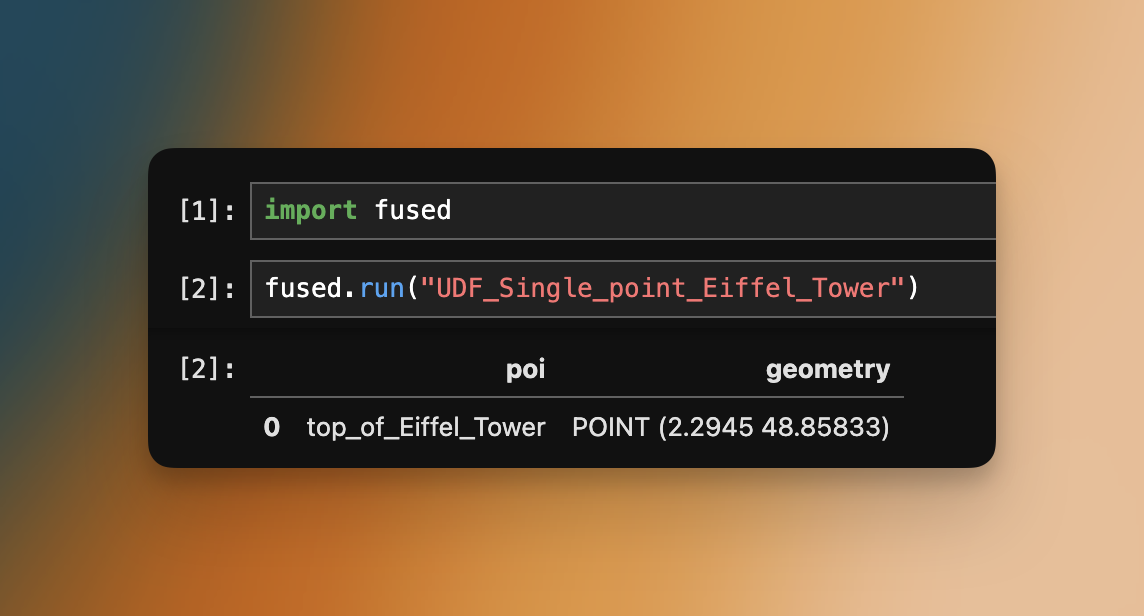
The simplest way to call a public UDF is using a public UDF name and calling it as: UDF_ + name. Let's take this UDF that returns the location of the Eiffel Tower in a GeoDataFrame as an example:
fused.run("UDF_Single_point_Eiffel_Tower")
There are a few other ways to run a UDF:
- By name from your account
- By public UDF name
- Using a token
- Using a
udfobject - From Github URL
- From git commit hash (most recommended for teams)
Name (from your account)
When to use: When calling a UDF you made, from your own account.
You can call any UDFs you have made simply by referencing it by name (given when you save a UDF).
(Note: This requires authentication)
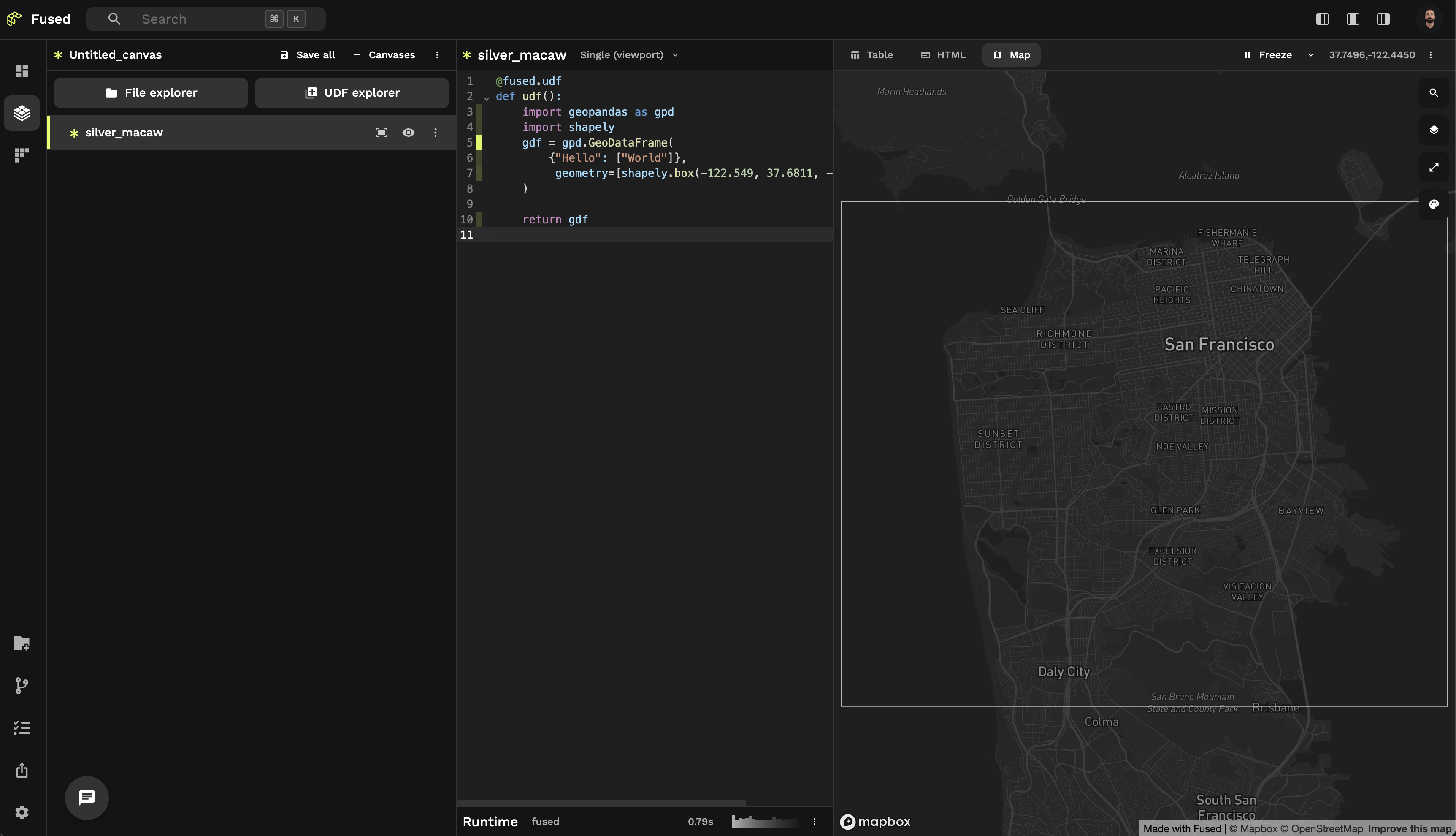
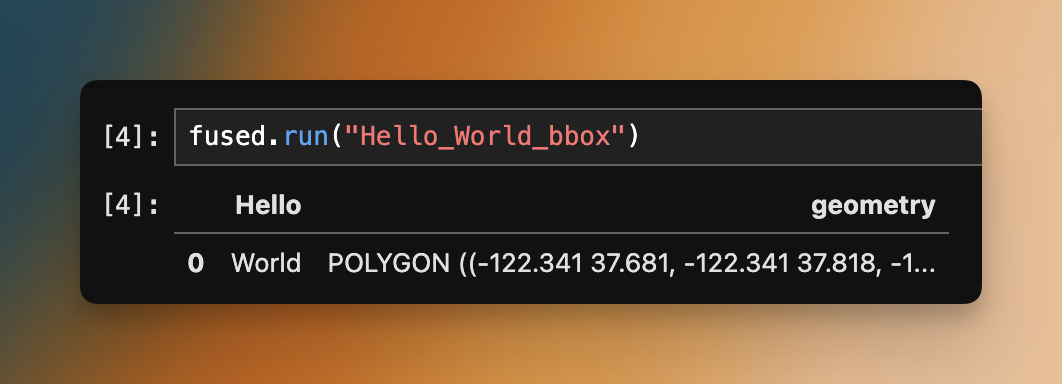
This UDF can then be run in a notebook locally (granted that you have authenticated):
fused.run("Hello_World_bbox")
Name (from your teammate's account)
When to use: When calling a UDF someone on your team made, from your own account.
Similarly, you can reference by name and run any UDFs under your teammates' accounts. Simply prefix the UDF name with the person's email address, separated by a /.
fused.run("teammate@fused.io/Hello_World_bbox")
Note that both your and your teammate's accounts must belong to the same organization.
Public UDF Name
When to run: Whenever you want to run a public UDF for free from anywhere
Any UDF saved in the public UDF repo can be run for free.
Reference them by prefixing their name with UDF_. For example, the public UDF Get_Isochrone is run with UDF_Get_Isochrone:
fused.run('UDF_Get_Isochrone')
Token
When to use: Whenever you want someone to be able to execute a UDF but might not want to share the code with them.
You can get the token from a UDF either in Workbench (Save your UDF then click "Share") or by returning the token in Python.
Here's a toy UDF that we want others to be able to run, but we don't want them to see the code:
# This example is from a notebook
import fused

@fused.udf()
def my_super_duper_private_udf(my_udf_input):
    import pandas as pd
    # This code is so private I don't want anyone to be able to read it
    return pd.DataFrame({"input": [my_udf_input]})
We then need to save this UDF to Fused server to make it accessible from anywhere.
# This example is from a notebook
my_super_duper_private_udf.to_fused()
my_udf.to_fused() saves your UDF to your personal user UDFs. These are private to you and your team. You can create a token that anyone (even outside your team) can use to run your UDF but by default these UDFs are private.
We can create a token for this my_super_duper_private_udf and share it:
- Python
- Workbench
token = my_super_duper_private_udf.create_access_token()
print(token)
This would return something like: 'fsh_**********q6X' (You can recognise this to be a shared token because it starts with fsh_)
You can create a Share Token directly from Workbench:
Once you have your 'fsh_***' token, you can use it to run your UDF:
fused.run(token, my_udf_input="I'm directly using the token object")
or directly:
fused.run('fsh_**********q6X', my_udf_input="I can't see your private UDF but can still run it")
UDF object
When to run: When you're writing your UDF in the same Python file / jupyter notebook and want to refer to the Python object directly. You might want to do this to test your UDF works locally for example
You may also pass a UDF Python object to fused.run:
@fused.udf
def local_udf():
    import pandas as pd
    return pd.DataFrame({})

# Note that by default fused.run() will run your UDF on the Fused serverless server so we pass engine='local' to run this as a normal Python function
fused.run(local_udf, engine='local')
Github URL
When to use: [Not recommended] This is useful if you're working on a branch that you control. This method always points to the last commit on a branch so your UDF can break without you knowing if someone else pushes a new commit or merges & deletes your branch
gh_udf = fused.load("https://github.com/fusedio/udfs/tree/main/public/REM_with_HyRiver/")
fused.run(gh_udf)
We do NOT recommend you use this approach as your UDF might break if changes are done to it
Especially using a URL pointing to a main branch means that your UDF will change if someone else pushes to it, in a way that isn't visible to you.
For that reason we recommend using a git commit hash instead
Git commit hash (recommended for most stable use cases)
When to use: Whenever you want to rely on a UDF such as in production or when using a UDF as a building block for another UDF.
This is the safest way to use a UDF. Since you're pointing to a specific git commit hash, you won't end up with changes breaking your UDF.
Using a git commit hash is the safest, and thus recommended way to call UDFs from Github.
This does mean you need to update the commit where your UDFs are being called if you want to propagate updates. But this gives you the most amount of control.
Let's again take the example of the Simple Eiffel Tower UDF:
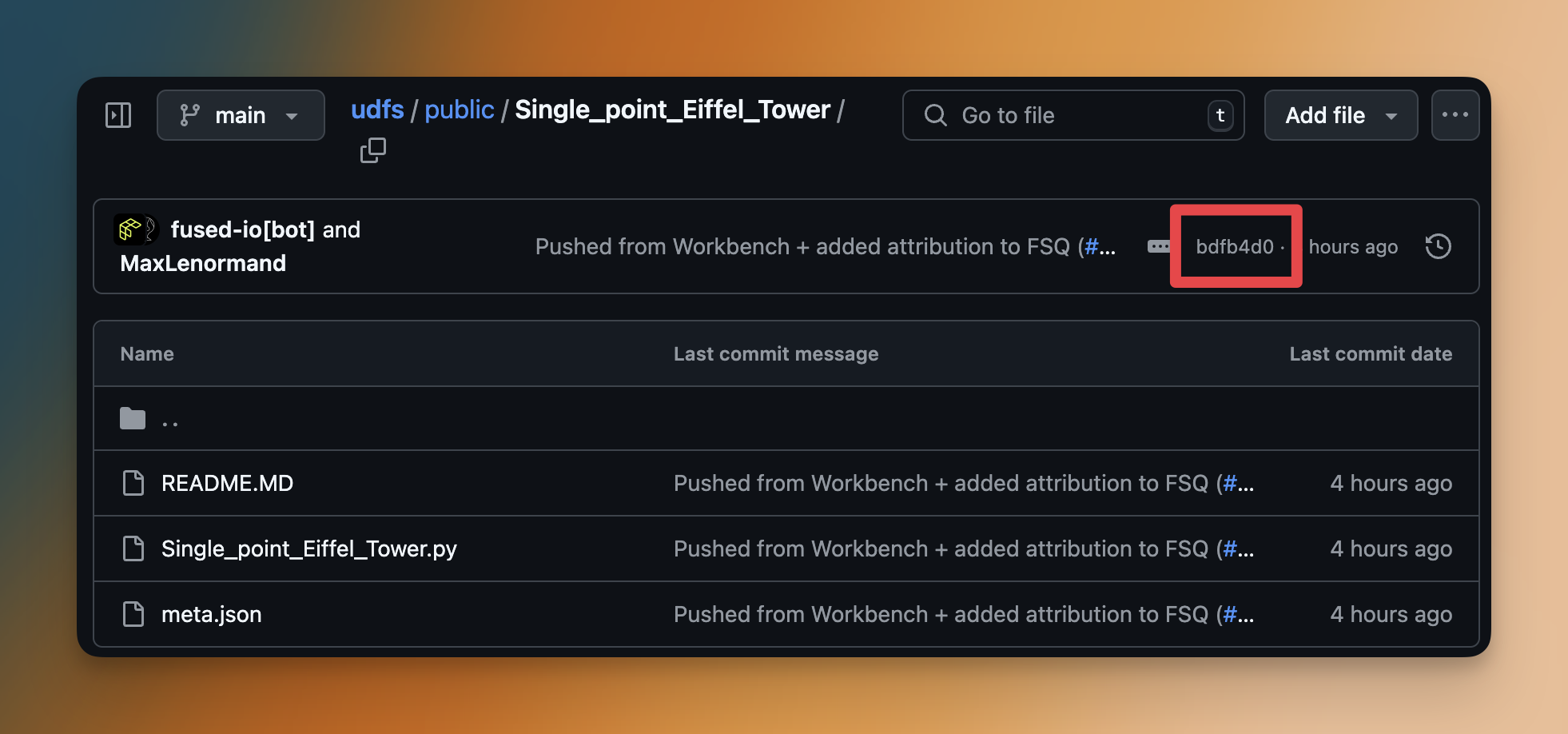
commit_hash = "bdfb4d0"
commit_udf = fused.load(f"https://github.com/fusedio/udfs/tree/{commit_hash}/public/Single_point_Eiffel_Tower/")
fused.run(commit_udf)
Team UDF Names
Team UDFs can be loaded or run by specifying the name "team", as in:
fused.load("team/udf_name")
This can be helpful when collaborating with team members as this does not require making a shared token
Execution engines
fused.run can run the UDF in various execution modes, as specified by the engine parameter either local or remote
local: Run in the current process.remote: Run in the serverless Fused cloud engine (this is the default).
# By default, fused.run will use the remote engine
fused.run(my_udf)
# To run locally, explicitly specify engine="local"
fused.run(my_udf, engine="local")
⚠️ Important change:
fused.run()now defaults toengine="remote"in all cases, even when users are not authenticated. Previously, it would default toengine="local"for unauthenticated users. If you are not authenticated, you must explicitly specifyengine="local"to run UDFs locally.
Set sync=False to run a UDF asynchronously (see below).
Async Execution
A UDF can be called asynchronously using the async/await syntax. A common implementation is to call a UDF multiple times in parallel with different parameters then combine the results.
Setting sync=False in fused.run is intended for asynchronous calls when running in the cloud with engine='remote'. The parameter has no effect if the UDF is ran in the local environment with engine='local'.
To illustrate this concept, let's create a simple UDF and save it as udf_to_run_async in the workbench:
@fused.udf
def udf(date: str='2020-01-01'):
    import pandas as pd
    import time
    time.sleep(2)
    return pd.DataFrame({'selected_date': [date]})
We can not pass a UDF object directly to fused.run. Asynchronous execution is only supported for saved UDFs specifed by name or token.
We can now invoke the UDF asynchronously for each date in the dates list and concatenate the results:
async def parent_fn():
    import pandas as pd
    import asyncio

    # Parameter to loop through
    dates = ['2020-01-01', '2021-01-01', '2022-01-01', '2023-01-01']

    # Invoke the UDF as coroutines
    promises_dfs = []
    for date in dates:
        df = fused.run("udf_to_run_async", date=date, engine='remote', sync=False)
        promises_dfs.append(df)

    # Run concurrently and collect the results
    dfs = await asyncio.gather(*promises_dfs)
    return pd.concat(dfs)
nest_asyncio might be required to run UDFs async from Jupyter Notebooks.
!pip install nest-asyncio -q
import nest_asyncio
nest_asyncio.apply()
Passing arguments in fused.run()
A typical fused.run() call of a UDF looks like this:
@fused.udf
def my_udf(inputs: str):
    import pandas as pd
    return pd.DataFrame({"output": [inputs]})

fused.run(my_udf, inputs="hello world")
A fused.run() call will require the following arguments:
- [Mandatory] The first argument needs to be the UDF to run (name, object, token, etc as seen above)
- [Optional] Any arguments of the UDF itself (if it has any). In the example above that's
inputsbecausemy_udftakesinputsas an argument. - [Optional] Any protected arguments as seen in the dedicated API docs page (if applicable). These include for example:
bounds-> A geographical bounding box (as a list of 4 points:[min_x, min_y, max_x, max_y]) defining the area of interest.cache_max_age-> The maximum age of the UDF's cache.
Examples of using parameters
Changing the default cache max age:
fused.run("UDF_CDLs_Tile_Example", cache_max_age='1d')
For running UDFs over multiple inputs in parallel, see fused.submit().
You can also call UDFs via HTTPS endpoints, turning your data into an API. See Tokens & Endpoints for shared tokens, tiling, serialization formats, and more.